<!DOCTYPE html>
<html lang="en">
<head>
<meta charset="UTF-8">
<meta name="viewport" content="width=device-width, initial-scale=1.0">
<title>Mobile Problems Guide</title>
<style>
:root{--bg:#f7fafc;--card:#ffffff;--text:#172033;--muted:#5b6577;--brand:#0ea5e9;--brand2:#6366f1;--green:#16a34a;--red:#ef4444;--amber:#f59e0b;--line:#e5edf5;}
*{box-sizing:border-box}
body{margin:0;background:linear-gradient(180deg,#eef7ff 0%,#f8fbff 260px,#ffffff 100%);font-family:Inter,Arial,sans-serif;color:var(--text);line-height:1.75}
.article-wrap{max-width:940px;margin:0 auto;padding:30px 18px 70px}
.article{background:rgba(255,255,255,.88);border:1px solid var(--line);border-radius:26px;box-shadow:0 18px 60px rgba(15,23,42,.08);overflow:hidden}
.content{padding:32px}
.intro-card{background:linear-gradient(135deg,#ecfeff,#eef2ff);border:1px solid #c7d2fe;border-radius:22px;padding:22px 24px;margin-bottom:18px;box-shadow:0 12px 30px rgba(99,102,241,.12)}
p{font-size:17px;margin:15px 0;color:#263246}
.lead-arrow{border-left:5px solid var(--brand);background:#f0f9ff;padding:16px 18px;border-radius:0 16px 16px 0;color:#1e3a5f}
h2{font-size:28px;line-height:1.25;margin:36px 0 16px;padding:15px 18px;border-radius:18px;background:linear-gradient(135deg,#0ea5e9,#6366f1);color:#fff;box-shadow:0 12px 28px rgba(14,165,233,.22)}
.step-title{background:linear-gradient(135deg,#111827,#334155)}
.problem-card{background:#fff;border:1px solid var(--line);border-radius:18px;padding:14px 18px;margin:12px 0;box-shadow:0 8px 22px rgba(15,23,42,.05)}
.problem-card p{margin:0;font-weight:650}
.note-box{background:#fffbeb;border:1px solid #fde68a;border-left:6px solid var(--amber);border-radius:18px;padding:18px 20px;margin:20px 0}
.note-box p{margin:0;color:#5b3b00}
.num-badge{display:inline-flex;width:42px;height:42px;align-items:center;justify-content:center;border-radius:50%;background:#0f172a;color:#fff;font-weight:800;margin:22px 0 4px;box-shadow:0 8px 20px rgba(15,23,42,.22)}
.data-row{background:#f8fafc;border:1px solid var(--line);border-radius:14px;padding:12px 15px;margin:8px 0;font-weight:600;color:#334155}
.tool-card{background:linear-gradient(135deg,#f0fdf4,#ecfdf5);border:1px solid #bbf7d0;border-radius:16px;padding:14px 16px;margin:10px 0;color:#14532d}
.check-grid{display:grid;grid-template-columns:repeat(2,minmax(0,1fr));gap:14px;margin:18px 0}
.check-card{display:flex;gap:12px;align-items:flex-start;border-radius:16px;padding:15px;border:1px solid var(--line);background:#fff;box-shadow:0 8px 24px rgba(15,23,42,.04)}
.check-card p{margin:0;font-size:16px}
.check-card.good{border-color:#bbf7d0;background:#f0fdf4}
.check-card.bad{border-color:#fecaca;background:#fff1f2}
.faq{background:#ffffff;border:1px solid #dbeafe;border-radius:18px;margin:14px 0;padding:18px 20px;box-shadow:0 8px 28px rgba(37,99,235,.06)}
.faq h3{margin:0 0 10px;font-size:19px;color:#1d4ed8}
.faq p{margin:0}
strong{font-weight:800}
@media(max-width:700px){.content{padding:22px 16px}h2{font-size:23px}p{font-size:16px}.check-grid{grid-template-columns:1fr}.article{border-radius:18px}}
</style>
</head>
<body>
<main class="article-wrap">
<article class="article">
<div class="content">
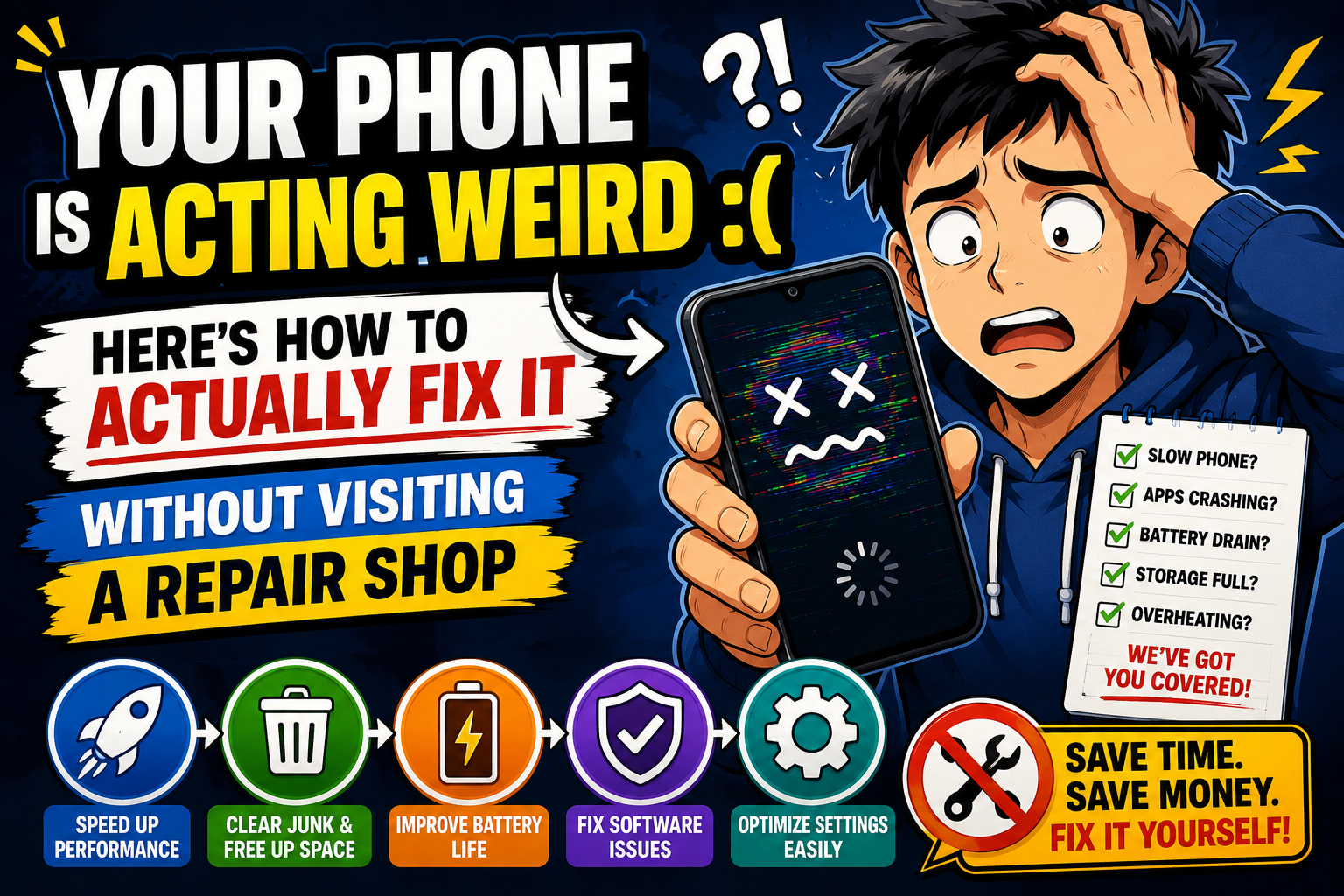
<div class="intro-card"><p>---> Smartphones are incredible machines. But they're also surprisingly fragile when it comes to software — one bad update, one rogue app, one full storage drive and suddenly your phone feels like it's falling apart. The good news is that most of these problems have simple, free fixes that anyone can do in minutes.</p></div>
<p>This guide covers the most common mobile problems people face in 2025 — on both Android and iPhone — and gives you real, working solutions. No tech background needed. :)</p>
<h2>What Kind of Problem Are You Dealing With?</h2>
<div class="problem-card"><p>🔋 Identify your issue first. It saves you 30 minutes of trying the wrong fixes.</p></div>
<p>Battery Dying Fast</p>
<div class="problem-card"><p>🐢 Loses charge in a few hours. Gets hot while charging.</p></div>
<p>Phone Running Slow</p>
<div class="problem-card"><p>🔥Apps take forever to open. Scrolling is laggy and choppy.</p></div>
<p>Overheating</p>
<div class="problem-card"><p>❌ Gets uncomfortably hot during calls, gaming, or charging.</p></div>
<p>Apps Crashing</p>
<div class="problem-card"><p>📶 Apps freeze, close themselves, or won't open at all.</p></div>
<p>No Sound / Audio Issues</p>
<div class="problem-card"><p>📡 Speaker not working. Calls are silent. Headphones not detected.</p></div>
<p>Wi-Fi / Signal Problems</p>
<p>Wi-Fi keeps dropping. Calls cut out. Mobile data not working.</p>
<h2>1Battery Draining Too Fast — The Real Causes</h2>
<p class="lead-arrow">➤ This is the number one complaint I hear from phone users. And honestly, it's also the most misunderstood. Most people immediately assume the battery is dead and needs replacing. Sometimes that's true — but not as often as people think.</p>
<p>Check Battery Health First</p>
<p>On iPhone: Go to Settings → Battery → Battery Health & Charging. This tells you your battery's current maximum capacity.</p>
<p>On Android: Most phones have this hidden in Settings → Battery → Battery Usage or through a dialler code like *#*#4636#*#* (works on Samsung and many other brands). Some manufacturers like OnePlus and Xiaomi have it directly in Battery settings. :)</p>
<div class="data-row">Battery Health %What It MeansAction100% – 85%HealthyBattery isn't your problem — look elsewhere84% – 75%AgingNoticeable drain — optimize settings first74% – 60%DegradedConsider battery replacement soonBelow 60%ReplaceBattery is failing — replace it</div>
<div class="faq"><h3>Quick Battery Fixes That Actually Work</h3>
<p>1</p></div>
<p>Turn off Always-On Display and raise screen-off timeout</p>
<p>The display is the single biggest battery drain on any phone. AOD (Always-On Display) alone can eat 15–20% of your battery per day doing absolutely nothing useful while your phone sits on a table.</p>
<div class="num-badge">2</div>
<p>Check Background App Refresh</p>
<p>On iPhone: Settings → General → Background App Refresh → turn it Off for apps that don't need live updates (games, shopping apps, social media). On Android: Settings → Apps → select app → Battery → Restrict. Apps like Instagram and Facebook are notorious for running in the background 24/7 even when you haven't opened them. :)</p>
<div class="num-badge">3</div>
<p>Audit your location permissions</p>
<p>Go through every app that has "Always On" location access. Maps needs it. A flashlight app does not. On iPhone: Settings → Privacy → Location Services. On Android: Settings → Location → App Permissions. Changing even 5–6 apps from "Always" to "Only While Using" makes a real difference in battery life.</p>
<div class="num-badge">4</div>
<p>Stop charging to 100% every night</p>
<p>Lithium batteries degrade faster when kept at 100% charge for long periods. Both iPhone and Pixel now have "Optimized Charging" features that slow charging past 80% overnight. Enable it. Charging to 80% and keeping it there adds months to your battery lifespan.</p>
<div class="note-box"><p>💡 Real ExampleA Xiaomi user I know went from 30% battery by 3pm to having 55% left at end of day — just by disabling Background App Refresh for 8 apps and switching location to "Only While Using." No hardware change. No replacement. Same phone, same battery.</p></div>
<h2>2Phone Running Slow — Fix It Step by Step</h2>
<p class="lead-arrow">➤ Slowness almost always comes down to three things: full storage, too many background processes, or an OS that hasn't been updated in months. Let's tackle each one.</p>
<p>Free up storage — aim for at least 15% free</p>
<p>When phone storage drops below 10%, the system itself slows down significantly. The OS needs scratch space to work. Go through your gallery — duplicate photos, old screenshots, blurry pictures — and delete them. Use Google Photos or iCloud to back up and then delete local copies. Just freeing up 5GB can make a noticeable difference in speed.</p>
<p>2. Clear app cache — not app data</p>
<p>On Android: Settings → Apps → select a heavy app like Chrome, Instagram, or YouTube → Storage → Clear Cache. This removes temporary files the app has accumulated. Don't confuse it with "Clear Data" which removes your login info and settings. Cache clearing alone is safe and often speeds things up noticeably. :)</p>
<p>3. Restart your phone fully — at least once a week</p>
<p>Most people never turn their phones completely off. A proper restart clears RAM, kills stuck processes, and refreshes network connections. Takes 30 seconds and fixes more issues than you'd expect. Set a weekly reminder if you tend to forget.</p>
<p>4. Update your OS and apps</p>
<p>Running a 6-month-old OS version while your apps have updated to expect the latest features creates conflicts. Both iOS and Android updates usually include performance improvements, not just new features. Always update within 2–3 weeks of a stable release dropping.</p>
<h2>3Overheating — When Your Phone Gets Too Hot</h2>
<p class="lead-arrow">➤ Some warmth during gaming or video calls is normal. But if your phone becomes uncomfortable to hold, or shuts itself down from heat — that's a problem that needs attention.</p>
<div class="note-box"><p>⚠ ImportantNever charge your phone under a pillow, in direct sunlight, or inside a case that traps heat. These situations can push temperatures high enough to permanently damage the battery — and in rare cases cause swelling.</p></div>
<p>The most common overheating causes: charging while using the phone intensively, a rogue app stuck in a loop consuming CPU, a phone case with poor ventilation, or a battery that has already degraded and works harder to deliver power.</p>
<p class="lead-arrow">➤ Quick fix: remove the case while charging. Check which app is running hot using your battery usage screen — the app at the top consuming the most battery right now is almost always the culprit. Force-close it and see if the phone cools down. :)</p>
<h2>4Android vs iPhone — Same Problem, Different Fix</h2>
<div class="problem-card"><p>🦅 iPhone (iOS)</p></div>
<p>Force restart: Volume Up → Volume Down → hold Side button</p>
<p>Reset Network: Settings → General → Transfer/Reset → Reset → Reset Network Settings</p>
<p>Apps crashing: delete and reinstall from App Store</p>
<p>Check battery health under Settings → Battery</p>
<p>Storage: Settings → General → iPhone Storage for detailed breakdown</p>
<p>Last resort: Settings → General → Reset → Erase All Content</p>
<div class="problem-card"><p>🤖 Android</p></div>
<p>Force restart: hold Power + Volume Down for 10 seconds</p>
<p>Reset Network: Settings → General Management → Reset → Reset Network Settings</p>
<p>Apps crashing: Settings → Apps → Force Stop → Clear Cache</p>
<p>Safe Mode: hold Power → long-press "Power Off" → Boot to Safe Mode</p>
<p>Storage: Settings → Storage for usage breakdown</p>
<p>Last resort: Settings → General Management → Reset → Factory Reset</p>
<h2>5Apps Keep Crashing — Here's Why</h2>
<p class="lead-arrow">➤ An app that keeps crashing is almost always one of three things: corrupted cache, an incompatible update, or a conflict with your current OS version.</p>
<p>Start with cache. On Android, clear the specific app's cache first (not data). On iPhone, delete the app and reinstall it — iOS doesn't have a separate "clear cache" option.</p>
<p>If the crash started right after an app update, wait 48–72 hours. The developer usually pushes a hotfix within that window once they see crash reports flooding in. You can also roll back to an older version on Android using APK sites — but only from trusted sources like APKMirror. :)</p>
<div class="note-box"><p>🚫 Watch OutIf one specific app crashes but everything else works fine, it's almost never a phone problem — it's an app bug. Reporting it through the app store review or the developer's support page is more useful than factory resetting your entire phone over one misbehaving app.</p></div>
<h2>Common Mistakes That Make Phone Problems Worse</h2>
<div class="check-grid">
<div class="check-card bad"><span>❌</span><p>✕Factory resetting immediately — This is the nuclear option. Most problems don't need it. Try everything else first. A factory reset wipes all your data, app settings, and logins — a huge inconvenience for a problem that a cache clear might have fixed.</p></div>
<div class="check-card bad"><span>❌</span><p>✕Using a cheap fast charger — Generic chargers that claim "65W fast charging" for $5 can deliver unstable voltage and damage your battery over time. Always use the charger that came with your phone or a certified brand-name alternative.</p></div>
<div class="check-card bad"><span>❌</span><p>✕Killing all background apps constantly — Swiping away every app in your recent list actually makes performance worse on modern phones. iOS and Android are designed to manage background apps efficiently. Re-launching apps from scratch uses more battery than letting them idle. :)</p></div>
<div class="check-card bad"><span>❌</span><p>✕Ignoring storage warnings until the phone stops working — When you hit 100% storage on a phone, things break. Apps crash. Photos won't save. Messages don't send. Don't wait for the warning to become a crisis.</p></div>
<div class="check-card bad"><span>❌</span><p>✕Installing "RAM booster" or "battery saver" apps — These do nothing useful on modern phones. They show fake "cleaned memory" numbers to feel valuable while running as yet another background process draining your battery.</p></div>
<div class="check-card good"><span>✅</span><p>✓Smart Habits to Keep Your Phone Running Great</p></div>
<div class="check-card good"><span>✅</span><p>✓Restart your phone fully at least once a week — not just lock the screen</p></div>
<div class="check-card good"><span>✅</span><p>✓Keep storage below 80% full at all times — delete what you don't need regularly</p></div>
<div class="check-card good"><span>✅</span><p>✓Update your OS within 2–3 weeks of stable releases dropping</p></div>
<div class="check-card good"><span>✅</span><p>✓Use optimized/scheduled charging to keep battery between 20–80% when possible</p></div>
<div class="check-card good"><span>✅</span><p>✓Audit location and background permissions every few months</p></div>
<div class="check-card good"><span>✅</span><p>✓Use a quality screen protector and case — physical protection prevents screen damage that software can't fix :)</p></div>
<div class="check-card good"><span>✅</span><p>✓Back up your phone weekly — Google Photos, iCloud, or local computer backup</p></div>
</div>
<h2>Frequently Asked Questions</h2>
<div class="faq"><h3>QMy phone charges super slowly now. Is the port damaged?</h3>
<p>Not necessarily — the most common cause is lint and dust packed inside the charging port from months of being in your pocket. Use a toothpick or a soft brush to gently clean it out. You'll often find a compressed grey blob of lint in there. Clean it carefully and try again before assuming the port is broken. :)</p></div>
<div class="faq"><h3>QMy phone screen is unresponsive in certain spots — software or hardware?</h3>
<p>If it's a fixed area of the screen that doesn't respond regardless of what you're doing — that's almost always hardware (a damaged layer under the display). But if it's random and intermittent, try a restart first. Also check if a screen protector is lifting at the edges and causing false touch rejection.</p></div>
<div class="faq"><h3>QAfter a system update my phone got noticeably slower. What happened?</h3>
<p>This is real and very common. New OS versions are optimized for newer hardware. Give it 48–72 hours — the phone indexes apps and data in the background after an update, which temporarily slows things down. If it's still slow after 3 days, clear the system cache partition on Android (search your specific phone model + "wipe cache partition" for instructions) or do a network settings reset on iPhone.</p></div>
<div class="faq"><h3>QIs it worth replacing a battery instead of buying a new phone?</h3>
<p>Almost always yes, if the rest of the phone works well. A battery replacement costs $30–$80 at most shops. If your phone is 2–3 years old and just has battery issues, replacing the battery gives you essentially a refreshed phone for a fraction of the cost. It makes no sense to spend $700+ on a new device when the only real problem is a degraded $50 battery.</p></div>
<div class="faq"><h3>QMy mobile data works but Wi-Fi doesn't — or the other way around. Why?</h3>
<p>These are separate systems on your phone, so one failing while the other works usually means the problem is in the network, not the phone. For Wi-Fi issues: forget the network and reconnect, or restart your router. For mobile data: toggle airplane mode on and off to force a network re-registration. If Wi-Fi works on other devices but not yours, do a network settings reset on your phone — it clears saved Wi-Fi passwords and cellular settings and forces a clean connection. :)</p></div>
<h2>Final Thoughts</h2>
<p class="lead-arrow">➤ Your phone doesn't need to be replaced every time something goes wrong. Most problems — even the ones that feel serious — have a straightforward fix that costs nothing and takes under 10 minutes.</p>
<p>The key is to stay calm and work through things logically. Check battery health. Free up storage. Clear cache. Restart properly. Update the OS. In that order, you'll solve 80% of what goes wrong with a smartphone.</p>
<p class="lead-arrow">➤ And when something genuinely isn't fixable through software — a cracked screen, a swollen battery, a water-damaged board — that's when a good local repair shop earns its fee. Most repairs are quick, affordable, and absolutely worth it compared to buying a brand new device. :)</p>
</div>
</article>
</main>
</body>
</html>