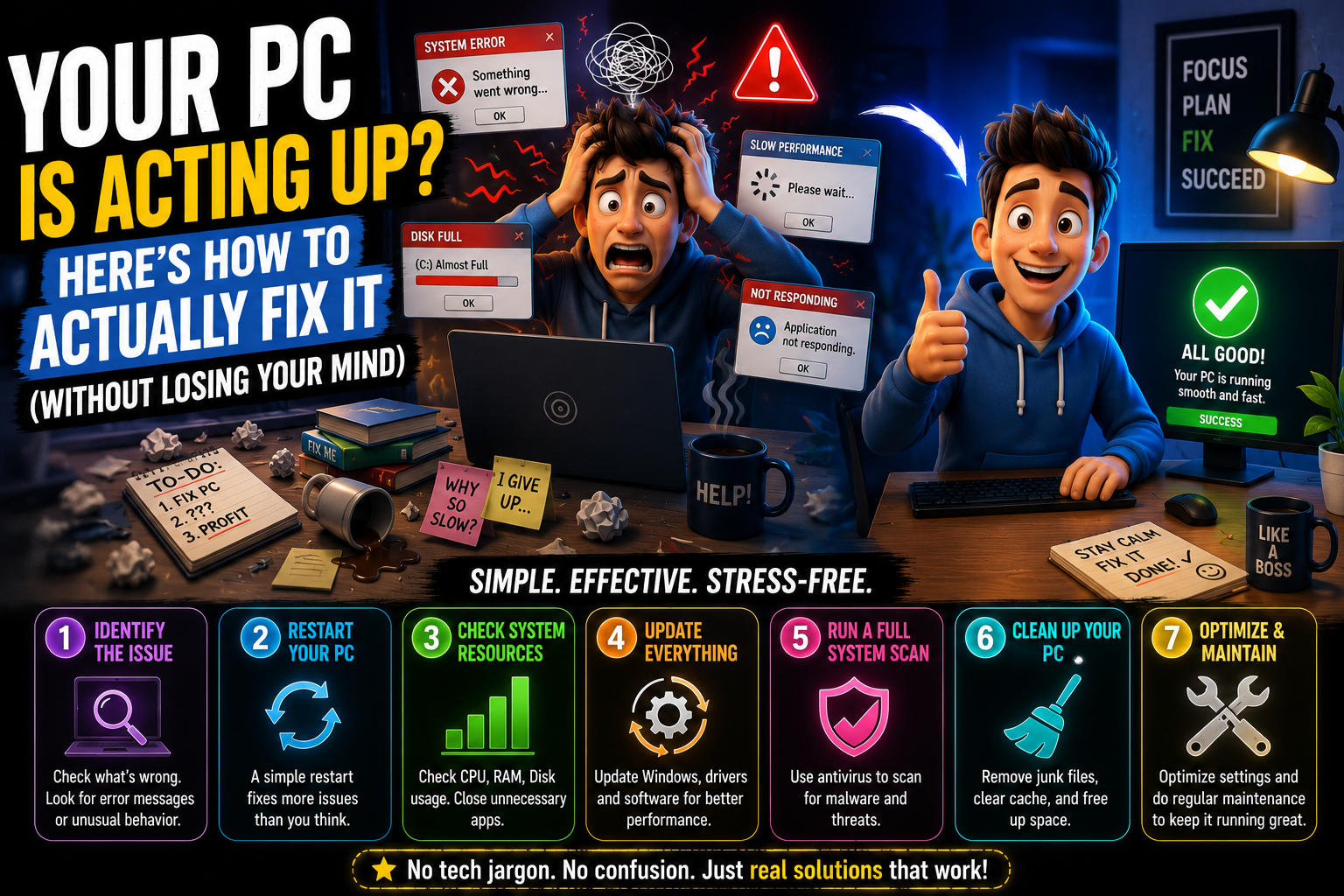
—> It starts with a slow boot. Then a random freeze. Then that dreaded blue screen shows up out of nowhere — and suddenly your whole afternoon is gone. Sound familiar? You’re not alone. Millions of people deal with these exact frustrations every single day, and most of the time, the fix is simpler than you think.
You don’t need to be a tech wizard to troubleshoot a PC. You just need to know where to look, what to check first, and when to stop poking around before you make things worse. This guide covers all of that. 🙂
Why Computers Start Misbehaving in the First Place
➤Most PC problems don’t just appear from thin air. There’s almost always a reason — even if it’s not obvious right away. Understanding the cause saves you a ton of time.
Common culprits include too many background programs eating up RAM, outdated or corrupted drivers, failing hard drives, malware quietly running in the background, overheating hardware, or a Windows update that didn’t install properly. Any one of these can turn a perfectly fine computer into a slow, glitchy mess.
The good news? Most of these are completely fixable at home. 🙂 Let’s walk through the most common problems and what to do about them.
Step-by-Step: Fixing the Most Common PC Problems
1. PC Running Slow? Start Here
➤First, open Task Manager (Ctrl + Shift + Esc). Click the “Processes” tab and look for anything hogging CPU or RAM. You’ll often find browser extensions, old update services, or even Antivirus scans going ham in the background.
Right-click anything suspicious and hit “End Task.” Don’t worry — you won’t break Windows by stopping a non-critical process. It’ll restart itself if it needs to.
Next, check your startup programs. Go to Task Manager → Startup tab. Disable anything you don’t need launching at boot. OneDrive, Spotify, Discord — these all slow down your boot time if they’re all firing up at once.
💡 Quick win: Restarting your PC (not just sleep/hibernate) clears temporary files and memory leaks. If you haven’t restarted in a few days, do it now before anything else.
2. Random Crashes or Blue Screens (BSOD)
➤A Blue Screen of Death is scary, but it always leaves a clue. Look at the error code on the screen — something like MEMORY_MANAGEMENT or IRQL_NOT_LESS_OR_EQUAL. Search that code on Google and you’ll often find the exact cause within minutes.
If you’re getting repeated BSODs, run Windows Memory Diagnostic (search it in the Start menu). This tests your RAM sticks for errors. A failing RAM module is a surprisingly common cause of random crashes that most people never suspect.
Also, update your drivers — especially GPU drivers. Go to Device Manager, right-click your display adapter, and select “Update driver.” Outdated graphics drivers are responsible for more crashes than most people realize.
3. PC Freezing or Becoming Unresponsive
➤Freezing is often a storage problem. If your PC freezes especially when opening files or launching apps, your hard drive might be struggling. Open Disk Management or download CrystalDiskInfo (free tool) to check your drive’s health status. If it shows “Caution” or “Bad,” back up your data immediately — that drive is on its way out.
Also check your disk usage in Task Manager. If it’s consistently sitting at 100%, that’s a real problem. Common fixes: disable Windows Search indexing, disable SysMain (formerly Superfetch), and check if Windows Defender is running a full scan in the background.
4. Internet Connection Dropping or Being Slow
➤Before you blame your ISP, try the basics. Open Command Prompt and type netsh winsock reset, hit Enter, then restart. This resets your network stack and fixes a surprising number of connection issues.
Also check if your Wi-Fi adapter drivers are up to date. Go to Device Manager → Network Adapters → right-click your Wi-Fi card → Update Driver. If you’re on a laptop and close to your router but still getting drops, the adapter driver is often the first thing to fix.
5. PC Won’t Turn On or Boot Properly
➤If your PC won’t boot at all, don’t panic. First, check the power cable. Yes, really — it sounds obvious, but loose connections are responsible for a shocking number of “dead PC” calls to tech support. 🙂
If the power light comes on but nothing happens, try booting into Safe Mode (hold Shift while clicking Restart → Troubleshoot → Advanced Options → Startup Settings). If it boots in Safe Mode, a third-party software or driver is causing the problem — you can uninstall recent installs from there.
Common Mistakes That Make PC Problems Worse
➤Immediately reinstalling Windows — This should be your last resort, not your first move. Most issues can be fixed without nuking everything.
➤Downloading “PC optimizer” tools from random websites — Most of these are either useless or contain malware themselves. Stick to built-in Windows tools or trusted names like Malwarebytes.
➤Ignoring SMART warnings from your hard drive — If a tool tells you your drive health is bad, don’t wait. Back up NOW.
➤Running multiple antivirus programs at once — They conflict with each other and slow everything down. Windows Defender alone is solid for most people.
Expert Recommendations for Long-Term PC Health
➤Preventing problems is easier than fixing them. Here’s what actually works:
Restart your PC at least once a week — let Windows install updates properly.
Keep at least 15% of your SSD or hard drive free. Running a drive at near-full capacity tanks performance.
Clean dust from your PC vents every 3–6 months. Overheating silently kills performance over time.
Run sfc /scannow in Command Prompt (as admin) every few months. It scans and repairs corrupted system files automatically.
Use a UPS (Uninterruptible Power Supply) if you’re in an area with frequent power fluctuations — sudden shutdowns damage hard drives and corrupt files. 🙂
💡 Real-world example: A friend’s laptop was freezing every 20 minutes. Turned out the thermal paste on the CPU had dried out completely — the processor was throttling itself to avoid overheating. A $5 tube of thermal paste and 30 minutes of work fixed three years of frustration.
Frequently Asked Questions
Q: My PC is slow but Task Manager shows low CPU and RAM usage. What’s wrong?
Check your disk usage. A slow or failing hard drive can bottleneck your entire system even if the processor and RAM look fine. CrystalDiskInfo is a great free tool to check drive health.
Q: How do I know if my PC has a virus?
Signs include unexpected pop-ups, programs opening on their own, extremely slow performance, and browser redirects. Run a full scan with Malwarebytes (free version works fine) to check. Don’t rely on Task Manager alone — some malware hides from it.
Q: Should I upgrade my RAM or buy an SSD first?
If you’re still on a mechanical hard drive, upgrade to an SSD first. It’s the single biggest performance jump you can make on an older PC — far more noticeable than adding RAM in most everyday tasks.
Q: Is it safe to use the computer during a Windows Update?
For most updates, yes — you can keep using it. But for major feature updates, it’s better to let it finish uninterrupted. Interrupting a major update mid-way can corrupt system files and cause bigger headaches. 🙂
Q: My fan is extremely loud suddenly. Should I be worried?
A suddenly loud fan usually means the CPU or GPU is running hot — either from heavy load or dust blocking airflow. Check Task Manager for any process running at 100% CPU. If idle and still loud, clean the vents and check if the fan itself is physically damaged.
Final Thoughts
➤PC problems feel overwhelming until you know where to start. And the truth is — most issues follow predictable patterns. Slow boot? Check startup programs. Random crash? Check RAM and drivers. Freezing? Check disk health. Once you understand those patterns, you stop panicking and start solving.
Take your time, work through one thing at a time, and don’t skip the basics just because they seem too simple. The obvious fix is obvious for a reason — it usually works. 🙂
And if you ever hit a wall, that’s okay too. Even experienced tech folks call for backup sometimes. The goal isn’t to know everything — it’s to know enough to figure it out.
For additional technical information and software support, readers should refer to the official manufacturer or software developer website.