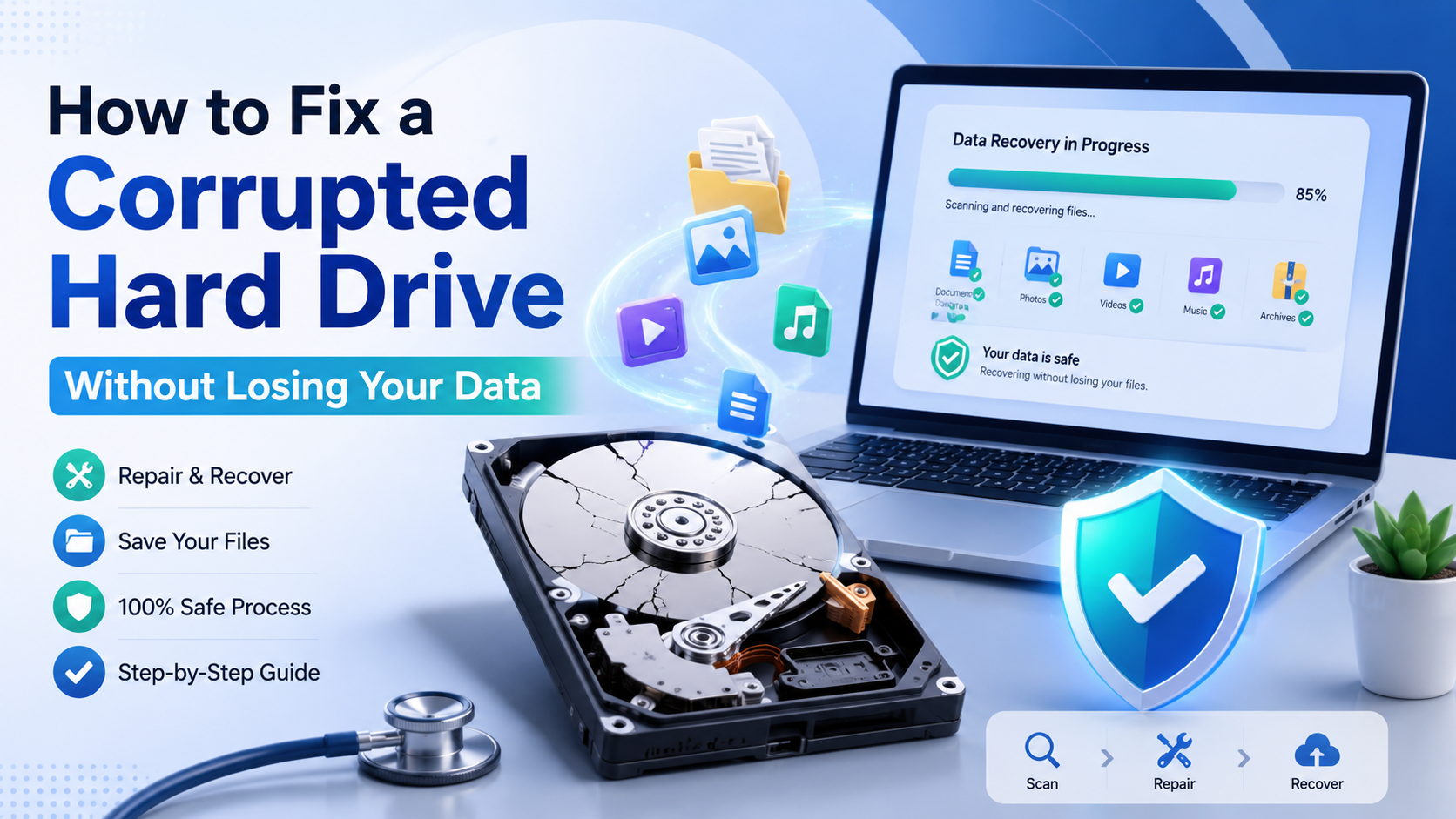
A corrupted hard drive does not always mean your files are permanently gone. With the correct order of checks, backups, recovery tools, and repair methods, you may be able to protect your data and restore access without immediately formatting the drive.
⚠️ The First Rule: Do Not Format the Drive
Windows or macOS may display a message asking you to initialize, erase, repair, or format an unreadable drive. Do not accept that option until your important data has been copied or recovered. Formatting can rebuild the file system, but it may also make later recovery more difficult.
What Does Hard Drive Corruption Mean?
Hard drive corruption happens when the computer cannot correctly read the drive’s file system, directory structure, partition information, or stored data. The files may still exist, but the operating system may no longer know how to locate or open them.
Corruption can result from sudden power loss, unsafe removal of an external drive, malware, failed software updates, damaged sectors, aging hardware, loose cables, or an interrupted file transfer. It is important to identify whether the problem is logical corruption or physical damage before attempting a repair.
Logical Corruption
The drive is detected, but folders disappear, files refuse to open, or the computer asks to format it. Software-based recovery may still be possible.
Physical Failure
The drive clicks, grinds, overheats, disconnects repeatedly, or is not detected at all. Continuing to run it may cause additional damage.
File-System Errors
The drive appears as RAW, shows the wrong capacity, or displays messages such as “file or directory is corrupted and unreadable.”
Bad Sectors
The drive becomes extremely slow, freezes during transfers, or repeatedly fails when reading certain folders and files.
Use the Safest Recovery Order
The order matters. Repair utilities can modify the drive’s file system. Therefore, valuable files should be copied, recovered, or included in a full disk image before aggressive repairs are attempted.
Step-by-Step Methods to Fix the Drive
Stop Writing New Data to the Drive
Do not download files, install programs, move folders, or save recovered data back to the corrupted drive. New information could overwrite recoverable file fragments.
If the corrupted drive contains the operating system, shut down the computer and connect the drive to another computer as a secondary device when practical.
Check the Cable, Port, and Power Connection
A damaged USB cable, weak power adapter, or faulty port can make a healthy drive appear corrupted. Disconnect the drive safely and try a different cable, USB port, computer, or enclosure.
For a desktop internal drive, turn off the computer before checking its SATA data and power connections. Never handle internal components while the computer is powered on.
Check Whether the Drive Is Detected
On Windows, right-click the Start button and open Disk Management. On a Mac, open Disk Utility. Confirm whether the drive appears with its expected capacity.
Do not initialize, erase, or create a new volume if the drive contains important files. A missing drive letter can sometimes be corrected in Disk Management without formatting the partition.
Copy Important Files Before Repairing
If the drive opens, immediately copy the most valuable documents, photos, videos, and business files to another healthy storage device. Start with smaller and irreplaceable files rather than attempting one massive transfer.
If normal copying freezes, use reputable recovery or disk-imaging software. Creating a sector-by-sector image allows recovery attempts to be performed on the copy instead of repeatedly stressing the original drive.
✓ Best Practice for Important Data
Recover the files to a different physical drive. Saving recovered files onto the damaged drive can overwrite other data that has not yet been recovered.
Use Windows Error Checking Carefully
After your important data has been copied or imaged, open File Explorer, right-click the affected drive, select Properties, choose Tools, and run Error Checking.
Advanced users can open Command Prompt as administrator and use:
Replace X with the correct drive letter. The /f option attempts to fix file-system errors. Do not run CHKDSK first on a clicking, disconnecting, or physically failing drive because it writes changes and may place additional stress on the hardware.
Run First Aid on macOS
Mac users can open Disk Utility, select the affected drive or volume, and choose First Aid. This checks the file system and attempts to repair directory-related problems.
Back up readable files first. If First Aid cannot complete, avoid repeatedly running it on a drive that is becoming slower or making unusual sounds.
Use Data-Recovery Software
Recovery applications can scan corrupted, deleted, lost, or RAW partitions. Examples include TestDisk, PhotoRec, Recuva, Disk Drill, R-Studio, EaseUS Data Recovery Wizard, and Stellar Data Recovery.
Install the program on a healthy drive, scan the corrupted device, preview recoverable files, and save the results somewhere else. A deep scan may take longer but can find files that a quick scan misses.
Check the Drive’s Health
SMART monitoring tools can show warning signs such as reallocated sectors, pending sectors, read errors, or overheating. These results help determine whether the corruption is a one-time file-system problem or evidence of a failing drive.
A SMART warning should be treated seriously. Copy your data and replace the drive rather than trusting it with important files again.
Which Method Should You Use?
| Drive Condition | Safest Action | Avoid |
|---|---|---|
| Drive opens but files are missing | Copy readable files and run recovery software | Saving new data to the drive |
| Drive appears as RAW | Create an image and scan for files or lost partitions | Formatting before recovery |
| Drive has file-system errors | Back up data, then use Error Checking or First Aid | Repairing before protecting files |
| Drive disconnects or freezes | Try another cable, then image the drive | Repeated full scans |
| Drive clicks or grinds | Power it off and contact a professional | Opening or repeatedly restarting it |
| SMART reports bad sectors | Recover data and replace the drive | Continuing long-term use |
Actions That Can Make Data Loss Worse
✓ Do This
✓ Stop using the drive immediately.
✓ Check cables and power connections.
✓ Copy critical files first.
✓ Create a disk image when possible.
✓ Recover files to another drive.
✓ Replace unreliable hardware.
✕ Avoid This
✕ Do not format the drive immediately.
✕ Do not install software on it.
✕ Do not open a sealed hard drive.
✕ Do not freeze or hit the drive.
✕ Do not run endless repair scans.
✕ Do not trust it after repeated failures.
🔬 When Professional Recovery Is Necessary
Contact a professional data-recovery service when the drive clicks, grinds, produces a burning smell, has suffered water or impact damage, or contains irreplaceable business or personal data. Professional laboratories can work with damaged components and specialized imaging equipment.
DIY experiments may reduce the chances of successful professional recovery, so switch the drive off when physical failure is suspected.
Frequently Asked Questions
Can a corrupted hard drive be repaired without formatting?
Yes, some logical errors can be repaired using Windows Error Checking, CHKDSK, macOS First Aid, partition-recovery tools, or data-recovery software. Protect important data before making repairs.
Will CHKDSK delete my files?
CHKDSK is designed to repair file-system errors, but it modifies disk structures and may remove damaged references or convert fragments into recovered files. Back up or image the drive before running it whenever possible.
Why does my computer ask me to format the drive?
The operating system may not recognize the file system or partition correctly. Formatting is not the first step when the drive contains important data. Scan or image the drive before considering a format.
Can bad sectors be permanently fixed?
Software can sometimes mark damaged sectors so they are no longer used, but it cannot physically repair a failing disk surface. Increasing bad-sector counts usually indicate that the drive should be replaced.
Can I keep using the drive after repairing it?
A drive with a one-time logical error may continue working, but a drive with SMART warnings, bad sectors, disconnections, or repeated corruption should be replaced. Do not store your only copy of important data on it.
Final Takeaway
A corrupted hard drive should be treated as a data-recovery problem before it is treated as a repair problem. Stop using the device, check its connections, copy readable files, and create a disk image when possible.
After your files are protected, use the operating system’s repair tools or trusted recovery software. When the drive makes unusual sounds or repeatedly disconnects, turn it off and seek professional assistance instead of risking permanent data loss.
The best long-term protection is an automatic backup system that keeps important files on multiple devices and in a secure off-site or cloud location.
Disclaimer: Data recovery and disk repair are not guaranteed. The safest method depends on the condition of the drive, the type of corruption, previous repair attempts, encryption, overwriting, and physical damage.