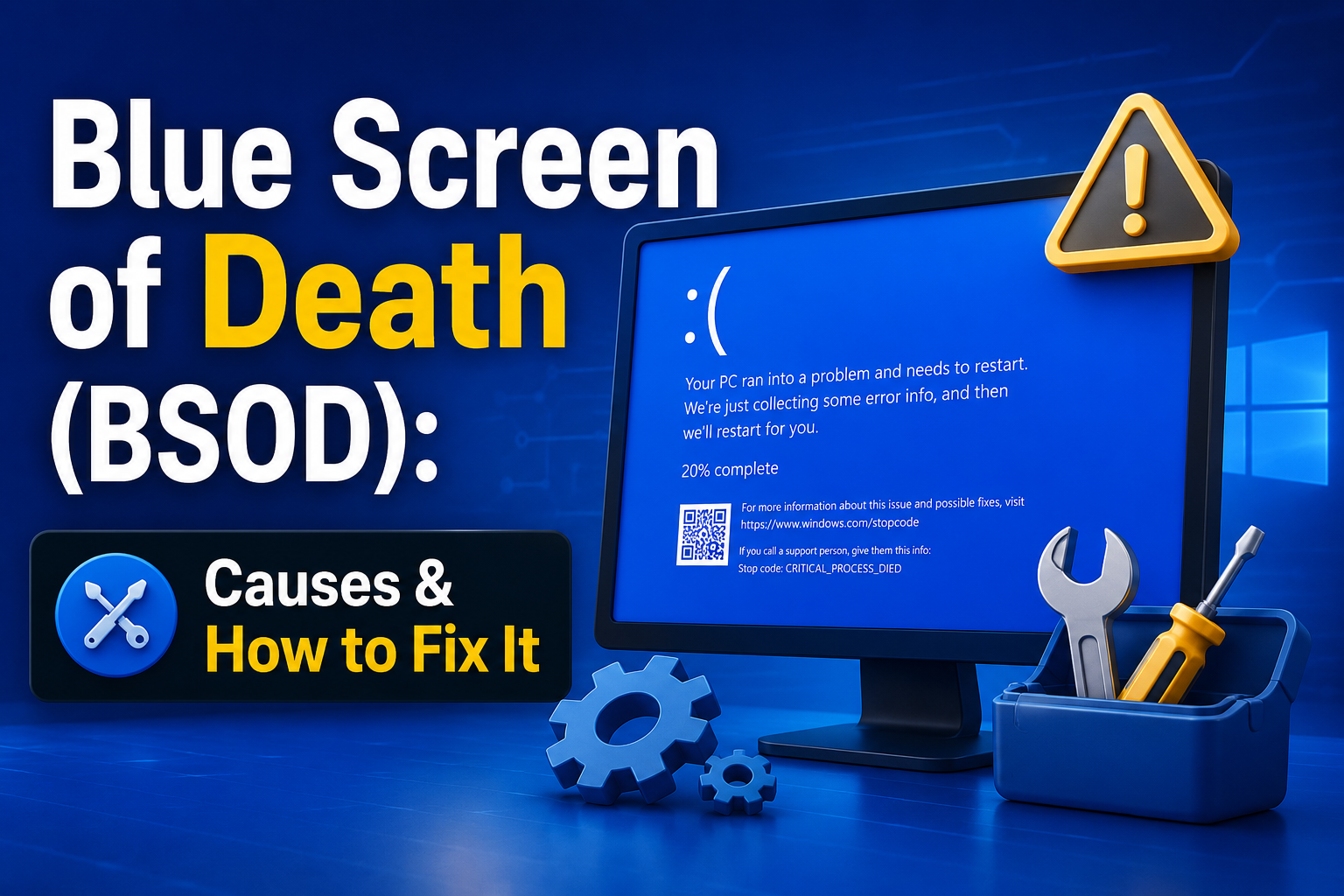
A sudden blue screen can interrupt your work, restart your computer, and make it appear as though Windows has suffered a serious failure. Although the Blue Screen of Death looks alarming, many BSOD errors can be resolved by identifying the stop code, removing unstable software, updating drivers, or repairing damaged system files.
⚠️ Before You Start Troubleshooting
If Windows still opens normally, back up your important documents, photos, browser data, and work files before making major changes. A BSOD may be caused by a minor driver conflict, but repeated crashes can also indicate failing storage, memory, overheating, or another hardware problem.
What Is the Blue Screen of Death?
The Blue Screen of Death is a Windows safety response that appears when the operating system encounters a critical error it cannot safely recover from. Instead of allowing the problem to damage files or continue corrupting memory, Windows stops the system and usually restarts the computer.
The screen may display a message such as “Your device ran into a problem”, a percentage counter, a QR code, and a stop code. Examples include MEMORY_MANAGEMENT, CRITICAL_PROCESS_DIED, IRQL_NOT_LESS_OR_EQUAL, and PAGE_FAULT_IN_NONPAGED_AREA.
The stop code is important because it provides a starting point. However, the same code can sometimes have more than one cause, so troubleshooting should also consider what changed shortly before the crashes began.
Most Common Causes of BSOD Errors
Faulty or Outdated Drivers
Drivers allow Windows to communicate with components such as the graphics card, Wi-Fi adapter, printer, storage controller, and audio hardware. A damaged, incompatible, or poorly installed driver can cause sudden system crashes.
Memory Problems
Defective RAM can corrupt information while programs are running. Common warning signs include random BSODs, application crashes, installation failures, and different stop codes appearing each time.
Storage Drive Errors
A failing SSD or hard drive may produce damaged system files, slow startup, freezing, missing files, or boot-related blue screens. File-system corruption can also develop after sudden power loss.
Overheating
Excessive heat can make the processor, graphics card, or motherboard unstable. Dust buildup, blocked ventilation, failed fans, and dried thermal paste are common causes of high temperatures.
Damaged Windows Files
System files may become corrupted because of interrupted updates, malware, storage errors, improper shutdowns, or failed software installations.
New Hardware or Software
A BSOD that begins after installing new RAM, a graphics card, antivirus software, a Windows update, or another application is often connected to that recent change.
How to Fix a Blue Screen Error
1. Record the Stop Code
Take a photo of the blue screen before the computer restarts. Write down the stop code and any driver filename displayed. This information can help connect the crash to memory, storage, graphics, networking, or another component.
2. Restart and Disconnect External Devices
Remove unnecessary USB drives, printers, hubs, webcams, controllers, external disks, and recently connected accessories. Restart the computer with only the keyboard, mouse, and monitor attached. If the crashes stop, reconnect devices individually to identify the cause.
3. Undo Recent Changes
Think about what happened before the first BSOD. Uninstall recently added software, remove experimental system utilities, reverse overclocking settings, and roll back a recently updated driver when appropriate.
To uninstall a program, open Settings → Apps → Installed apps, locate the application, and select the uninstall option.
4. Start Windows in Safe Mode
Safe Mode loads Windows with a limited set of drivers and services. If the computer works correctly in Safe Mode, the problem is more likely related to third-party software, a startup application, or a device driver.
- Open the Windows recovery environment.
- Select Troubleshoot → Advanced options → Startup Settings.
- Restart the computer.
- Select Safe Mode from the displayed options.
5. Update or Roll Back Drivers
Open Device Manager and check for warning symbols. Pay special attention to display adapters, network adapters, storage controllers, and recently installed hardware.
Download important drivers from the computer or component manufacturer’s official support page. Avoid random driver-update websites, as they may install incorrect or unwanted software.
6. Repair Windows System Files
Open Command Prompt or Terminal as an administrator and run the System File Checker:
After it finishes, run the Windows image-repair command:
Restart the computer after both scans are complete.
7. Check the Storage Drive
Use the built-in disk-checking utility to identify file-system problems. Open an administrator Command Prompt and enter:
Windows may ask to schedule the scan for the next restart. Back up important data first, especially when the drive is making unusual sounds or performing very slowly.
8. Test the Computer’s RAM
Search Windows for Windows Memory Diagnostic, open it, and select the option to restart and check for problems. If errors are reported, turn off the computer and test individual memory modules when possible.
New RAM can also cause crashes when it is incompatible, incorrectly seated, or running at unstable settings.
9. Install Stable Windows Updates
Open Windows Update and install available security, quality, and hardware updates. If BSOD errors started immediately after an update, use update history to uninstall the latest problematic update or use System Restore.
BSOD Symptoms and Likely Solutions
| What You Notice | Possible Cause | Recommended Action |
|---|---|---|
| Crash while gaming | Graphics driver, heat, or power problem | Update GPU driver and check temperatures |
| Different stop codes every time | RAM instability or power issue | Run memory tests and remove overclocking |
| Crash during startup | Damaged driver or system file | Use Safe Mode and system repair tools |
| Crash after connecting a device | USB hardware or driver conflict | Disconnect and reinstall its driver |
| Slow PC followed by BSOD | Storage drive failure | Back up data and check drive health |
| BSOD after Windows update | Update or driver compatibility issue | Remove the update or roll back the driver |
When to Use System Restore or Reset Windows
System Restore
System Restore can return drivers, registry settings, and system files to an earlier working state without normally deleting personal documents. Use it when BSOD errors started after a driver, application, or Windows configuration change.
If repair commands, driver changes, and hardware tests do not solve the problem, Windows Reset may be considered. The option to keep personal files still removes many installed applications and settings, so create a complete backup before proceeding.
✓ Helpful Actions
✓ Back up files before repairs.
✓ Record every stop code.
✓ Use official driver sources.
✓ Check temperatures and fans.
✓ Test RAM and storage health.
✓ Reverse recent system changes.
✕ Avoid These Mistakes
✕ Ignoring repeated crashes.
✕ Installing random driver tools.
✕ Continuing to use a failing drive.
✕ Changing many settings at once.
✕ Overclocking an unstable computer.
✕ Resetting Windows without backup.
🔧 When Professional Repair Is Needed
Seek professional help when the computer cannot enter Windows or recovery mode, the storage drive makes clicking sounds, the system produces a burning smell, important data is not backed up, or hardware tests repeatedly report errors. Physical hardware repair and data recovery require proper tools and experience.
Frequently Asked Questions
Can a BSOD permanently damage my computer?
The blue screen itself usually does not damage hardware. It is a protective response. However, the underlying cause, such as overheating or a failing drive, can become more serious when ignored.
Why does my computer restart before I read the error?
Windows may be configured to restart automatically after a system failure. Disable automatic restart in advanced system settings so the stop code remains visible longer.
Can antivirus software cause blue screens?
Yes. Security software works deeply within Windows and may cause conflicts when damaged, outdated, or incompatible. Temporarily uninstalling a recently added antivirus program can help test this possibility.
Will reinstalling Windows fix every BSOD?
No. Reinstalling Windows may solve software corruption, but it will not repair faulty RAM, an overheating processor, a damaged motherboard, or a failing storage drive.
Why does the BSOD happen only during gaming?
Games place heavy demands on the graphics card, processor, memory, power supply, and cooling system. Gaming-only crashes commonly point to heat, unstable graphics drivers, overclocking, or insufficient power.
Final Takeaway
A Blue Screen of Death is not a complete diagnosis. It is a warning that Windows encountered a critical problem and stopped to protect the system. Begin by recording the error, disconnecting external devices, reversing recent changes, and checking drivers.
Next, repair system files, test the memory, examine storage health, and monitor temperatures. Work through one change at a time so you can identify the real cause. When crashes continue or hardware damage is suspected, back up your data and contact a qualified technician.
Disclaimer: Troubleshooting results vary by device and error. Always protect important data before changing drivers, repairing disks, resetting Windows, or replacing hardware.