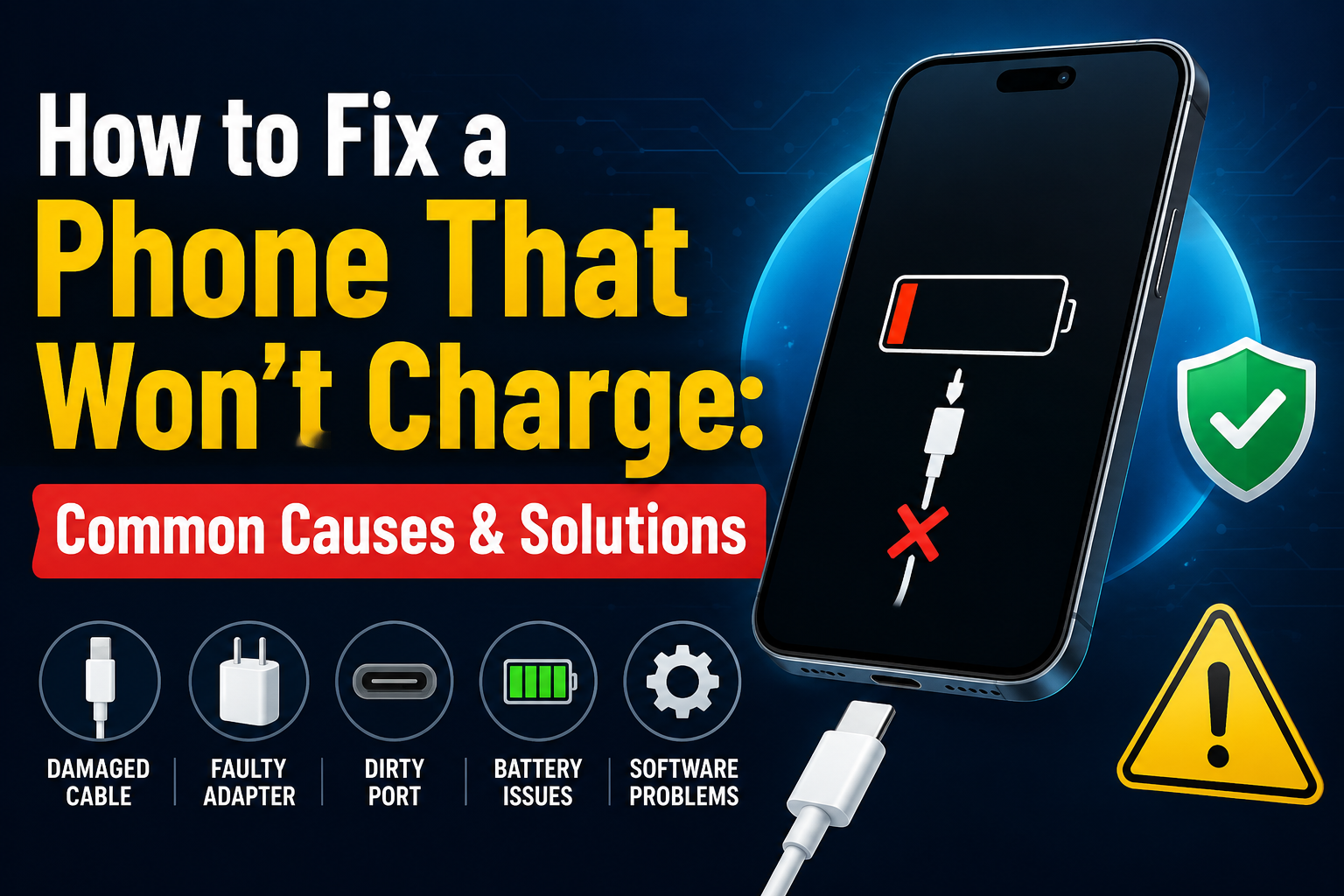
A phone that refuses to charge can quickly become stressful, especially when the battery is almost empty. Fortunately, many charging failures come from simple issues such as dust in the port, a damaged cable, overheating, or a temporary software error. Before assuming the phone is permanently damaged, follow these checks in order.
Why a Phone May Stop Charging
Power travels through the wall socket, adapter, cable, charging port, internal circuit, and battery. A fault at any point can stop charging. Common causes include a worn cable, weak adapter, dirty port, moisture detection, extreme temperature, incompatible accessories, software crashes, or battery damage. Testing one part at a time is the fastest way to identify the problem.
⚠️ Important Safety Warning
Stop charging the phone immediately if it becomes extremely hot, smells burnt, produces smoke, or has a swollen battery. Disconnect it from power and arrange professional inspection.
Common Causes and Practical Solutions
Check the Power Source
Test the wall outlet with another device. If you are using an extension board, laptop port, car charger, or power bank, connect the phone directly to a reliable wall socket.
Try another outlet and leave the phone connected for at least fifteen minutes. Avoid repeatedly pressing the power button because each startup attempt uses the limited energy entering the battery.
Inspect the Cable
Charging cables are bent, twisted, and pulled every day. Damage often develops near the connector even when the outer covering appears normal. Test the phone with another compatible cable that works correctly.
Look for exposed wire, loose ends, discoloration, bent connectors, or a plug that moves inside the port. Replace damaged cables instead of covering them with tape. A poor cable can charge slowly, disconnect repeatedly, or create excess heat.
Test the Adapter
The adapter can fail even when the cable is fine. Try another trusted adapter that supports your phone’s charging standard.
If another adapter works, replace the original one. Use the manufacturer’s charger or a reputable certified alternative.
Clean the Charging Port
Pocket lint and dust often collect inside the port. The cable may appear connected while the plug is not reaching the contacts properly. Turn off the phone and inspect the port with a light.
Use a dry, soft brush or a wooden or plastic toothpick carefully. Never use water, metal pins, knives, or excessive force. If debris is tightly packed or the pins look bent, let a technician clean the port.
Restart the Phone
A temporary software crash can stop charging detection. Disconnect the charger, restart the phone, and reconnect it after the device has fully started. If the display is frozen, use the force-restart combination recommended for your model.
Check for Moisture
Many modern phones block wired charging when moisture is detected. Disconnect the cable and place the phone in a dry, ventilated area with the port facing downward. Let it dry naturally.
Do not use a hair dryer, oven, direct sunlight, compressed air, or rice. Heat can damage seals, while rice dust can enter the port. Seek professional help if the phone was submerged or the warning remains for many hours.
Let the Phone Cool
Phones may pause charging when they are too hot or too cold. Remove the case, disconnect the charger, and place the device in a shaded room-temperature area.
Gaming, navigation, video recording, and direct sunlight can raise temperature quickly. Once the phone cools, reconnect it and avoid demanding apps while charging.
Review Software and Battery Settings
Install available system updates because manufacturers sometimes fix charging problems. Check battery settings for optimized charging, battery protection, or an eighty-percent limit.
Try Wireless Charging
If the phone supports wireless charging, test it with a compatible pad.
Wireless charging working while cable charging fails usually points to the cable, adapter, or port. If neither method works, the issue may involve the battery or internal power hardware.
Look for Battery Damage
Stop using the phone if the back panel is lifting, the screen is separating, the battery area is swollen, or the device smells unusual. Never press the case closed or continue charging it.
A swollen lithium battery can be dangerous. Turn off the phone, keep it away from heat and flammable materials, and arrange professional replacement.
Quick Diagnostic Guide
| What You Notice | Most Likely Cause or Solution |
|---|---|
| Another cable works | Replace the original cable. |
| Another adapter works | Replace the original adapter. |
| Cable feels loose | The port may contain debris or be worn. |
| Charging stops when moved | The connector or port may be damaged. |
| Wireless charging works | The wired accessories or port are likely responsible. |
| Phone becomes extremely hot | Disconnect it immediately. |
What Not to Do
✕ Avoid These Charging Mistakes
Do not insert the cable at different angles, clean the port with metal objects, or continue using a swollen battery.
Avoid apps claiming to repair physical battery damage.
Do not factory-reset the phone before backing up important data.
A reset should be a final software step.
When Repair Is Needed
🛠️ Get the Phone Professionally Inspected
Professional inspection is appropriate when the port is bent, burnt, loose, or pushed inside; the phone has liquid damage; the battery is swollen; or several verified chargers fail. A technician can test the battery, port, charging board, and power-management circuit.
Frequently Asked Questions
Why does the phone show charging but the percentage does not increase?
The charger may be supplying less power than the phone is using. Close demanding apps, turn off the screen, and test another suitable adapter and cable.
Why does charging repeatedly connect and disconnect?
A damaged cable, dirty port, loose connector, unstable outlet, or moisture can cause repeated interruptions.
Can I use any charger?
Use a compatible, certified charger. A connector may fit, but poor-quality accessories can overheat, charge slowly, or fail to support the required protocol.
Why does charging stop at eighty percent?
Battery-protection settings may intentionally limit charging to reduce long-term wear. Review the battery settings before assuming there is a fault.
Will a factory reset fix charging?
It may help with rare software issues, but it cannot repair a damaged cable, port, battery, or charging circuit.
Final Takeaway
Most charging problems can be solved by checking the outlet, cable, adapter, port, temperature, and software in a careful order. Stop using the device if you notice swelling, burning smells, extreme heat, or physical damage. Reliable accessories and gentle port cleaning can prevent many future issues. When basic checks fail, professional diagnosis is safer than forcing the connector or experimenting with an unstable battery.