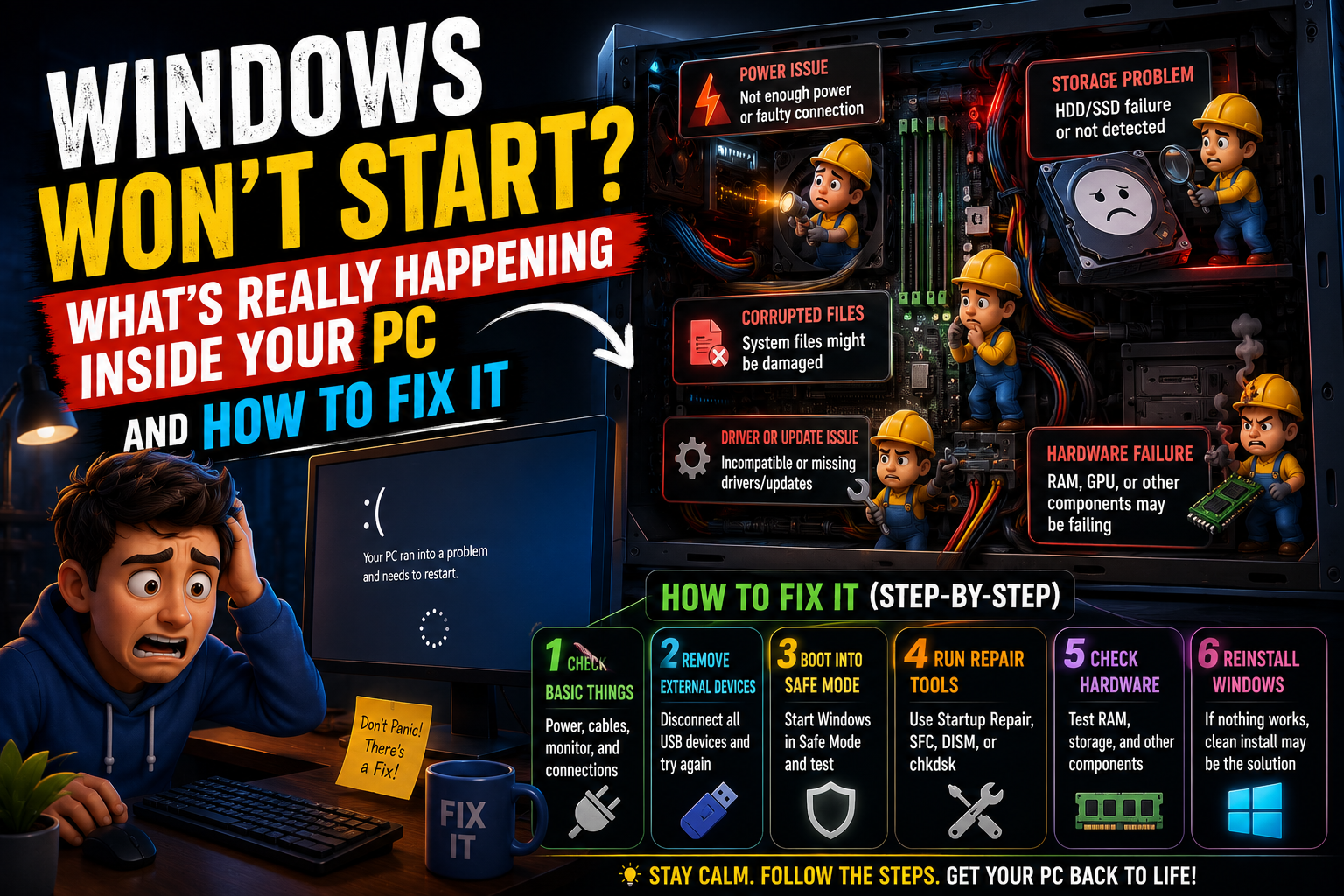
—> The power button glows. The fans spin. Maybe you hear the startup sound. And then — nothing. A black screen. A frozen logo. A spinning circle that never stops spinning.
→ Or maybe Windows starts loading and then crashes back to a black screen. Or boots halfway and freezes. Or shows an error about missing boot files before giving up entirely.
Boot failures wear different masks. But they almost always trace back to a small number of actual causes — and most of them don’t require reinstalling Windows or replacing hardware. 🙂
→ What they do require is understanding what the boot process actually does, because that knowledge tells you exactly where to look when it breaks.—
What Happens Between ‘Power On’ and ‘Windows Desktop’
→ Most people treat booting as a black box — press power, wait for desktop. But there are about seven distinct stages happening in those seconds. Knowing them turns a mysterious failure into a diagnosable problem.
→ Stage 1 — POST. Power-On Self Test. The motherboard checks that RAM, CPU, and storage are present and responding. If something critical is missing here, you get beep codes or an error before Windows is ever involved.
→ Stage 2 — UEFI/BIOS. Firmware initializes hardware and hands control to the bootloader. This is also where boot order is configured — which drive the system looks to first for an operating system. 🙂
→ Stage 3 — Boot Manager. Windows Boot Manager (stored on a small partition called the EFI System Partition on modern PCs) loads and selects which Windows installation to start.
→ Stage 4 — Windows Loader. Loads the Windows kernel into memory. Problems here produce specific error messages about missing files.
→ Stage 5 — Kernel initialization. The core of Windows starts. Drivers load. If a driver is corrupt or incompatible, this is often where things crash. 🙂
→ Stage 6 — Session Manager. Services start. User session initializes.
→ Stage 7 — Desktop. What you actually see.
→ A failure at Stage 2 looks completely different from a failure at Stage 5. Identifying which stage breaks down narrows your fix to the right category immediately.—
Black Screen With Cursor — The Specific Fix Most Guides Miss
→ Black screen with a mouse cursor you can move. Windows technically started — the display driver loaded, the cursor is responsive — but the desktop, taskbar, and everything else never appeared.
→ This is almost always Explorer.exe failing to launch. Explorer.exe is the process that draws your desktop, taskbar, and file system interface. When it crashes or doesn’t start, you get exactly this. 🙂
How to Fix It Right Now
→ Press Ctrl + Shift + Esc to open Task Manager (it works even without a desktop). Click File → Run New Task. Type explorer.exe and press Enter.
→ If your desktop appears — the fix was that simple. Explorer crashed on startup and Task Manager let you relaunch it manually. 🙂
→ For a permanent fix, open the same Run New Task dialog, type regedit, navigate to:
→ Find the value named Shell. It should say exactly explorer.exe — nothing else. If it says something different, or has additional entries — malware or a corrupted update changed it. Set it back to explorer.exe only. Restart. Problem solved permanently. :)—
Stuck on ‘Getting Windows Ready’ or Spinning Dots Forever
→ This one requires patience before action. Sometimes Windows Update is genuinely just slow — especially feature updates on older hardware or slower drives. Give it 30 full minutes before concluding something is wrong.
→ After 30 minutes with zero progress? Then act. 🙂
→ Hard shutdown — hold power button for 10 seconds until the PC turns off. Restart. Windows has a built-in recovery mechanism that detects interrupted updates and rolls them back automatically on the next boot. Most of the time this self-corrects without any intervention.
→ If it happens again on the next restart — Windows needs repair. Boot into Recovery Environment (covered shortly) and run Startup Repair.—
Error Messages and What They’re Actually Telling You
→ Windows boot errors look scary. They’re actually fairly specific once you know the translation.
‘No Boot Device Found’ or ‘No Bootable Media’
→ Windows can’t find a drive with an operating system on it. Three possible causes: the drive failed and isn’t being detected, the drive is fine but the boot files got corrupted, or the boot order in BIOS changed and it’s looking at the wrong drive first. 🙂
→ Enter BIOS (usually Del, F2, or F12 at startup — the key shows briefly on screen). Check that your Windows drive appears in the boot order. If it’s there — the drive is being detected, so the boot files are the problem. Proceed to Startup Repair. If it’s not listed — the drive has a hardware issue.
‘Your PC Ran Into a Problem and Needs to Restart’
→ A BSOD that happens during boot rather than during normal use. Same rules apply as any BSOD — note the stop code. The difference here is that if it loops (crashes, restarts, crashes again) you need to break the cycle first. 🙂
→ Windows detects boot loops and should automatically offer recovery options after two or three failed attempts. If it doesn’t — manually force shutdown during the Windows logo phase three times in a row. On the fourth attempt, Windows automatically enters the Recovery Environment.
‘Winload.efi Not Found’ or ‘Boot Configuration Data Missing’
→ The EFI boot files are damaged. This sounds terminal. It usually isn’t. The Startup Repair tool in Windows Recovery handles this exact problem — it rebuilds the BCD (Boot Configuration Data) and replaces missing EFI files. :)—
Windows Recovery Environment — Your Actual Toolkit
→ The Windows Recovery Environment (WinRE) is a separate lightweight system built into Windows specifically for fixing boot problems. It’s the most important tool for everything covered in this article — and most users don’t know it exists.
How to Get Into Recovery Environment
→ Method 1 — If Windows partially loads: Hold Shift while clicking Restart from the login screen or Start menu. Takes you directly to WinRE.
→ Method 2 — If Windows won’t load at all: Force shutdown by holding the power button during the Windows logo, three times in a row. Windows detects the pattern and boots into WinRE automatically on the fourth attempt. 🙂
→ Method 3 — USB Installation Media: Create a Windows 10/11 bootable USB using the Microsoft Media Creation Tool (free from microsoft.com). Boot from it, choose ‘Repair your computer’ instead of Install. Access to full WinRE without needing Windows to start at all.
Startup Repair — Try This First
→ Inside WinRE: Troubleshoot → Advanced Options → Startup Repair. Windows scans for and automatically fixes the most common boot problems — missing boot files, corrupted BCD, damaged MBR. Takes 5-15 minutes. Fixes a surprisingly high percentage of boot failures completely automatically. 🙂
Command Prompt Repairs for Specific Problems
→ Inside WinRE: Troubleshoot → Advanced Options → Command Prompt. This is where you go when Startup Repair didn’t work.
→ Rebuild the BCD (Boot Configuration Data):
bootrec /fixboot
bootrec /scanos
bootrec /rebuildbcd
→ Run these four commands in order. Each one targets a different component of the boot chain. Together they fix the majority of ‘no bootable device’ and BCD-related errors. 🙂
→ Repair corrupted system files:
→ System File Checker scans Windows system files and replaces corrupted ones from cached copies. If SFC finds and fixes issues — restart normally. If it reports it couldn’t fix everything:
→ DISM goes further — it downloads clean system file versions directly from Windows Update servers and uses them to repair what SFC couldn’t. :)—
Safe Mode — Diagnosing What’s Causing the Crash
→ Safe Mode loads Windows with only essential drivers and services. No third-party software, no startup items, minimal hardware support. If Windows works in Safe Mode but not normally — a driver, startup program, or service is causing the crash.
→ Access Safe Mode from WinRE: Troubleshoot → Advanced Options → Startup Settings → Restart → Press 4 for Safe Mode. 🙂
→ Once in Safe Mode — check recently installed drivers and software. If a graphics driver update preceded the boot failure, roll it back through Device Manager. If new software was installed recently, uninstall it. Reboot normally after changes and test.
→ Safe Mode is also where you run antivirus scans if malware is suspected. Some malware specifically targets normal boot processes. Running a scan from Safe Mode means the malware isn’t active when you’re scanning for it. :)—
When the Drive Itself Is the Problem
→ Sometimes the issue isn’t boot files or drivers — it’s the physical storage device failing.
→ Signs that point toward drive failure rather than software: The drive doesn’t appear in BIOS. Startup Repair finds nothing to fix. Strange noises at startup. Very long delays before any boot screen appears.
→ From WinRE Command Prompt, you can run a drive health check:
→ ‘OK’ means the drive is reporting itself as healthy. ‘Pred Fail’ or errors mean the drive is warning of failure. 🙂
→ If the drive is failing — the priority shifts from fixing the boot to recovering data. Use a Linux live USB to boot the PC, access whatever files are still readable, and copy them to an external drive before the storage gets worse.—
The Nuclear Option — Reset Without Losing Files
→ If everything above fails and Windows still won’t cooperate — there’s one more option before a full reinstall.
→ WinRE → Troubleshoot → Reset this PC → Keep my files. 🙂
→ This reinstalls Windows from scratch while preserving your personal files in place. Documents, photos, downloads — untouched. Apps and settings get removed. Windows itself gets rebuilt clean.
→ It works for the vast majority of deep software corruption issues. It takes 30-60 minutes. And it avoids the complete data backup and clean install process that a full reinstall requires.
→ Not magic — but close. :)—
FAQ
Will running Startup Repair delete my files?
→ No. Startup Repair only touches boot files and system configuration — it doesn’t touch personal documents, photos, or applications. It’s safe to run as a first step without backing anything up first. 🙂
My PC boots fine sometimes and fails other times — what causes that?
→ Intermittent boot failures almost always point to hardware. Failing RAM, a dying drive, or a loose cable that makes and breaks connection unpredictably. Run Windows Memory Diagnostic, check drive health with the WMIC command above, and reseat RAM sticks and storage cables if accessible.
How do I create a bootable USB if my PC won’t start?
→ Use a different computer. Go to microsoft.com/software-download/windows11, download the Media Creation Tool, run it, choose ‘Create installation media,’ select USB drive. The tool handles everything. That USB then boots any compatible PC into Windows Setup or Recovery. 🙂
The bootrec commands say ‘Access Denied’ — why?
→ You need to assign a drive letter to the EFI partition first. In Command Prompt: type diskpart, then list vol, find the FAT32 volume (usually 100-500MB), type sel vol X (replace X with its number), then assign letter=Z. Exit diskpart and retry the bootrec commands.
Is it worth repairing or should I just reinstall Windows?
→ Always try repair first. A full reinstall takes hours of setup and application reinstallation. Startup Repair and the bootrec commands take 15 minutes and fix the same problems in most cases. Go nuclear only when repair genuinely fails — which is less often than people assume. :)—
Final Thoughts
→ A PC that won’t boot feels like a complete disaster. It’s usually not.
→ The boot process is predictable and sequential. When it breaks, it breaks at a specific stage for a specific reason. Following the diagnostic path — identifying the stage, applying the right tool, running repairs in the right order — resolves the majority of boot failures without data loss and without a full reinstall. 🙂
→ The Recovery Environment is more powerful than most people realize. Startup Repair, SFC, DISM, bootrec — these tools exist precisely for moments like this. They work more often than the panic of a black screen makes you think.
→ Calm down. Work through it. Your files are probably fine.
→ For additional technical information and software support, readers should refer to the official manufacturer or software developer website.