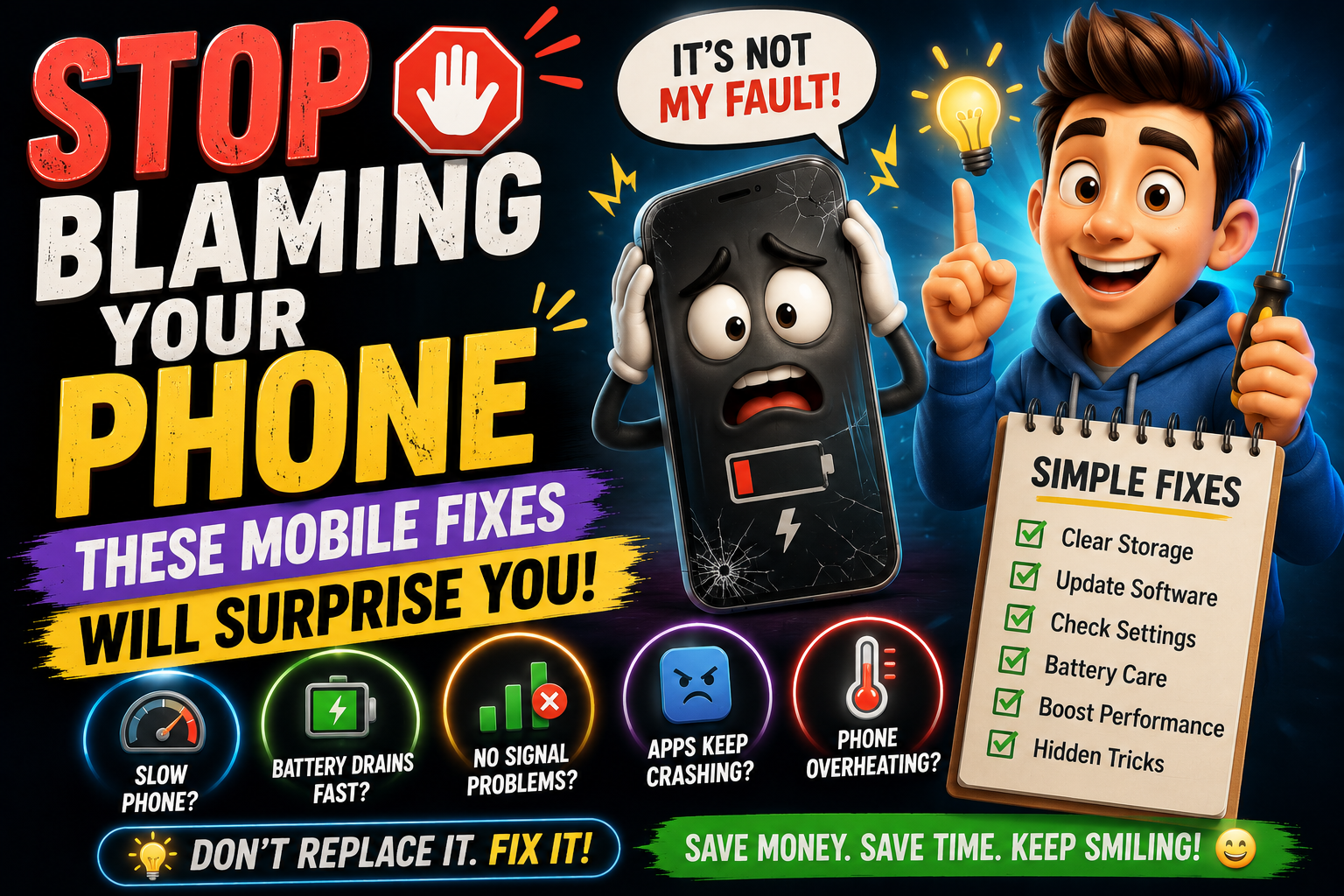
Stop Blaming Your Phone: These Mobile Fixes Will Surprise You
Simple, practical mobile fixes for battery drain, slow performance, crashing apps, Wi-Fi problems, mobile data issues, and overheating.
Picture this. You’re about to send an important message and your phone just… stalls. The keyboard stops responding. The app hangs. You restart it, wait 40 seconds, and silently question every decision that led you to this moment.
“`Here’s something worth knowing though. In more than 70% of everyday mobile issues, the phone itself is perfectly fine. The real problem is almost always something invisible — a background process gone rogue, a storage folder nobody ever cleaned, or an app that quietly updated itself into chaos. The hardware is usually innocent.
This article is written for anyone who’s tired of forum rabbit holes and YouTube videos that never quite solve the problem. We’re going straight to the cause, the fix, and the habit that stops it from coming back.
“`Why Phones Misbehave — The Real Story
A smartphone is basically a small computer. And just like a computer, it slows down, overheats, and acts strange when too many things are fighting for attention at once. Unlike a laptop, though, most people never “maintain” their phone. No disk cleanup, no restart for weeks, no check on what’s running.
Over time, that neglect adds up. Cached files pile up by the gigabyte. Apps that were opened once in 2022 are still sitting in memory. Notifications ping every three minutes, waking the processor. None of these things alone is fatal — but together, they slowly drag a perfectly good device into frustration territory.
If your phone was fast when you bought it and now feels sluggish, the processor hasn’t gotten worse. Something in the software environment has changed. That means it can be fixed.
The Six Mobile Problems People Complain About Most
Based on what people actually search for and ask about, these are the issues that show up again and again:
| Problem | Most Likely Cause |
|---|---|
| Battery dying too fast | Background apps, screen settings, old battery |
| Phone feels laggy | Full storage, too many running apps |
| Apps keep crashing | Corrupted cache, outdated app version |
| Wi-Fi keeps dropping | Router conflict, stale network settings |
| Phone overheating | CPU-heavy app running in background |
| Mobile data not working | APN settings, carrier issue, SIM tray loose |
Practical Mobile Solutions — Step by Step
Battery Problems
Open your battery usage screen right now. On iPhone it’s Settings → Battery. On Android it’s Settings → Battery → Battery Usage. You’re looking for any app using more than 10–15% in the background. Social media apps, email clients, and navigation apps are the usual suspects.
- Restrict background activity for apps that don’t need it.
- Change location permission to “Only while using” for all non-essential apps.
- Turn off “Always On Display” if your phone has it — it eats more than people realize.
- Reduce screen brightness by even 20% — the display is the biggest power draw on any phone.
- Enable Adaptive Battery on Android or Low Power Mode on iPhone during busy days.
If none of that helps and your phone is over two years old, the battery itself might just need replacing. Most phone repair shops do it for $30–$60 and it genuinely feels like having a new phone.
Slow Performance
This one has a predictable fix most of the time. Check your storage. If you’re below 10–15% free space, your phone is struggling. The operating system needs room to write temporary files, manage updates, and process tasks. When that room disappears, everything slows down.
- Go to Settings → Storage and check what’s eating the most space.
- Delete or move your camera roll to cloud storage — photos and videos are almost always the biggest chunk.
- Open your browser and clear cached data from its settings.
- On Android: go to Settings → Apps, tap each major app, hit Clear Cache — not Clear Data.
- Restart your phone. Not just lock the screen — actually power it off and back on.
Someone had a Samsung Galaxy S21 that felt incredibly slow. Storage check showed 512MB free out of 128GB. After moving 14GB of WhatsApp media to Google Photos and clearing browser cache, the phone felt responsive again within minutes. No factory reset needed.
Apps Crashing
The three-step fix works 80% of the time. Force close the app. Clear its cache. Reopen it. If the crash happens again, check the app store — there’s likely a pending update that addresses a known bug.
Still crashing after an update? Uninstall and reinstall. This does a full clean slate on the app’s local data without touching your phone’s system. Takes two minutes. Works surprisingly often.
“`Wi-Fi and Mobile Data Issues
Toggle Airplane Mode on for 15 seconds, then off. This forces the device to re-establish connections from scratch. If Wi-Fi reconnects but still doesn’t load pages, forget the network and re-enter the password.
For mobile data problems specifically — especially after switching SIM cards or traveling — the issue might be APN settings. Your carrier’s website will have the correct APN values. Enter them in Settings → Mobile Network → APN on Android or contact your carrier directly for an iPhone configuration profile.
“`Overheating
Phones warm up during gaming, video calls, or GPS navigation — that’s normal. But if your phone gets hot while sitting on a table doing nothing, one app is burning through the CPU quietly.
Check Settings → Battery → Battery Usage. Sort by “last 24 hours.” If an app has consumed 25–30% of battery while the screen was off, force-stop it immediately. Common culprits include Facebook, Instagram, certain news apps, and poorly coded third-party launchers.
“`Mistakes That Make Mobile Problems Worse
A few things people do with good intentions actually backfire:
❌ Mistake 1: Killing Every App Manually
Killing every app manually from the recent apps screen can use more battery on modern Android and iOS because the system has to fully reload each app next time. Let the OS manage memory unless an app is misbehaving.
❌ Mistake 2: Downloading RAM Booster Apps
Most “RAM booster” or “phone cleaner” apps are the problem, not the solution. They run in the background constantly and often contain adware.
❌ Mistake 3: Factory Reset as the First Step
A factory reset is a last resort, not a first move. You can lose everything, and the root cause might just come right back.
❌ Mistake 4: Using Any Charger That Fits
Cheap unbranded chargers can deliver unstable voltage and silently degrade battery health over months.
Habits That Keep Your Phone Running Well Long-Term
Good phone health comes down to a few consistent habits. These take almost no time:
“`- Restart once a week — clears temporary files and resets processes that get stuck.
- Review app permissions every few months — remove camera, microphone, and location access from apps that don’t genuinely need it.
- Keep software updated — system updates regularly fix performance bugs and security vulnerabilities.
- Keep 15% or more storage free — treat it like breathing room for your operating system.
- Charge between 20% and 85% when possible — better for long-term battery chemistry.
A $60 battery replacement on a 3-year-old phone often outperforms buying a brand-new mid-range device. The camera, processor, and screen are still perfectly capable — it’s usually just the battery holding everything back.
Frequently Asked Questions
Q1. My phone shows full signal but the internet isn’t loading. What’s going on?
Signal bars show network connection strength, not internet connectivity. Your phone might be connected to the carrier network but the data session itself has dropped. Toggle Airplane Mode off and on, or go to Settings and toggle Mobile Data off and back on. If that doesn’t work, try resetting network settings — this fixes it in most cases.
Q2. Should I let my battery drain to 0% to “calibrate” it?
No — that’s outdated advice from older nickel-based batteries. Modern lithium-ion batteries in every phone sold today are actually stressed by deep discharge cycles. Keeping charge between 20% and 80% is healthier for longevity.
Q3. Can clearing app cache delete my account login or saved data?
Clearing cache is safe — it only removes temporary files. Your login, saved settings, and personal data stay untouched. Clearing “Data” is a separate option and will log you out and reset the app. Always choose cache first.
Q4. My phone works fine on Wi-Fi but 4G/5G is really slow. Why?
It could be a coverage issue in your area, network congestion, or incorrect APN settings. Check your carrier’s coverage map online first. If coverage is fine, contact your carrier about APN configuration — incorrect settings are a surprisingly common cause of slow mobile data.
Q5. How do I know if it’s a hardware problem or a software problem?
A simple rule: if the problem appeared suddenly after an update or installing an app, it’s almost certainly software. If it appeared after a drop, water exposure, or gradually over years, hardware is more likely. Software problems are usually fixable yourself. Hardware issues typically need a technician.
Final Thoughts
“`Your phone doesn’t need to be replaced every time something goes wrong. Most mobile issues have simple, free fixes that take under ten minutes. Battery drain, slow performance, app crashes, network drops — all of these follow patterns, and once you know what to look for, they stop being mysterious.
Start small. Check your battery usage today. Free up some storage this week. Restart your phone on Sunday. These tiny habits genuinely change how your device performs over the long run.
And when something doesn’t make sense or keeps coming back despite all troubleshooting — that’s when you go to a certified repair center or your device manufacturer’s support. Some problems really do need hands-on attention, and there’s no shame in asking for it.
“`