⚠️ Restart Before Changing Anything
If your computer has been running for several days, restart it before troubleshooting. Restarting closes stuck processes, clears temporary memory, completes pending updates, and gives the operating system a fresh start. Do not simply close the laptop lid, because sleep mode is not the same as a full restart.
Why Computers Become Slow Over Time
Computers usually slow down gradually rather than failing all at once. More applications begin launching automatically, temporary files accumulate, storage becomes crowded, browsers collect extensions, and background services compete for memory and processing power.
Hardware also matters. A computer with limited RAM, an older hard disk, poor cooling, or a weak processor may struggle with modern applications. The key is to identify the real bottleneck instead of randomly installing “speed booster” programs that may create additional problems.
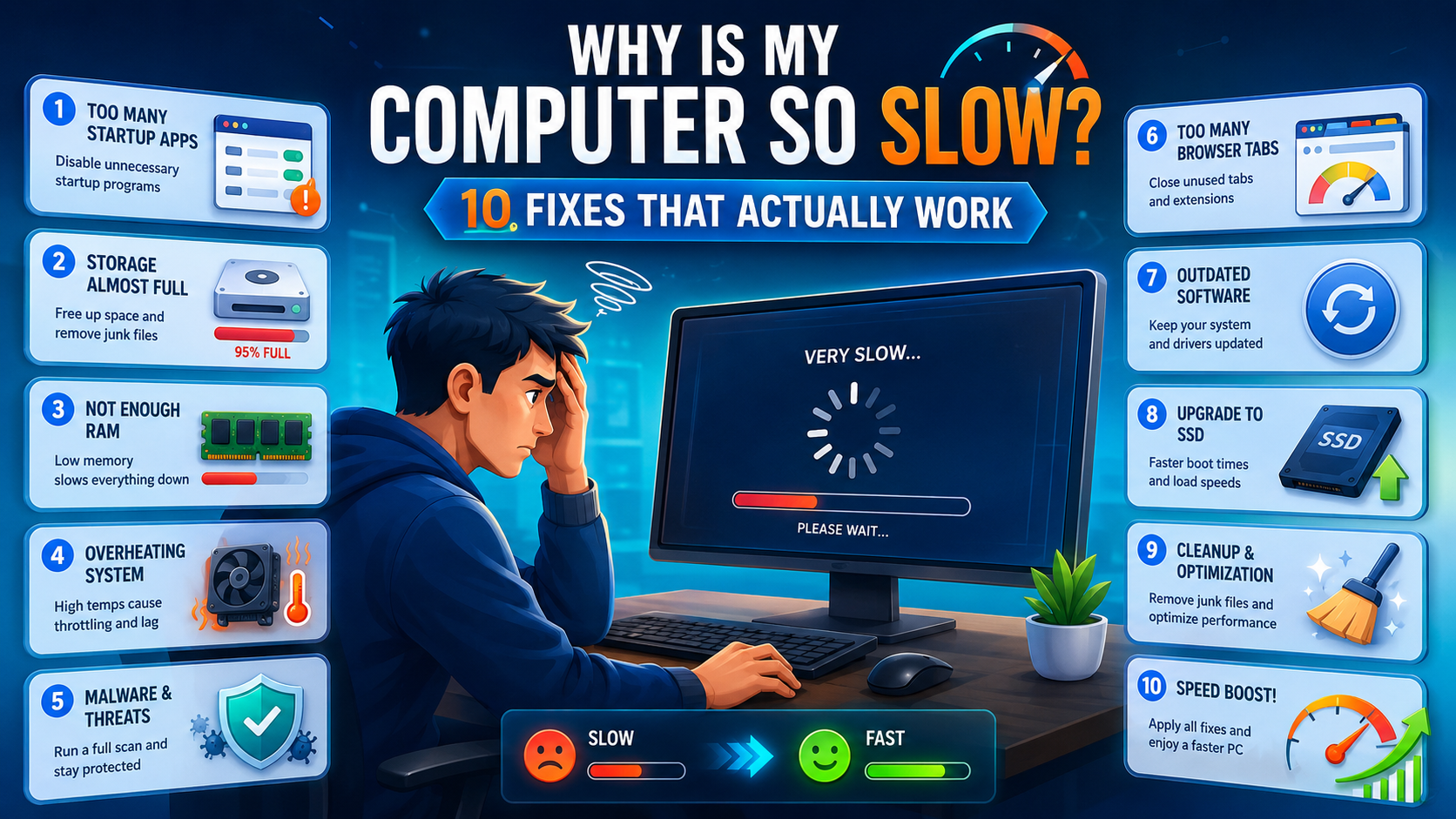
10 Fixes That Can Speed Up Your Computer
Disable Unnecessary Startup Programs
Many applications quietly configure themselves to open whenever the computer starts. This increases boot time and keeps consuming memory even when you are not using those programs.
On Windows, open Task Manager and select the Startup Apps section. On a Mac, open System Settings and review Login Items. Disable programs that do not need to run immediately.
Keep essential security, audio, graphics, and hardware utilities enabled. Messaging apps, game launchers, meeting tools, and software updaters can usually be opened manually when required.
Check Which Program Is Using Resources
A single application can sometimes consume most of the processor, memory, disk, or network capacity. Open Task Manager on Windows or Activity Monitor on macOS and sort processes by CPU or memory usage.
If an application is using unusually high resources, save your work and close it normally. Restart the application and check whether the usage returns to normal. Repeated high usage may indicate a damaged installation, outdated software, or an incompatible extension.
Free Up Storage Space
Computers need free storage for temporary files, updates, browser data, virtual memory, and application caches. Performance can decline when the main drive is nearly full.
- Remove large files you no longer need.
- Empty the Recycle Bin or Trash.
- Uninstall unused applications and games.
- Move videos and archives to an external drive.
- Use the built-in storage cleanup tool.
Try to keep a reasonable amount of the system drive available rather than filling it to its maximum capacity.
Reduce Browser Tabs and Extensions
Modern web browsers can use a surprising amount of memory, especially when dozens of tabs remain open. Video websites, online editors, dashboards, advertisements, and social media pages may continue running scripts in the background.
Close tabs you are not actively using and bookmark useful pages for later. Review installed browser extensions and remove anything outdated, duplicated, or unnecessary. An extension that promises coupons, downloads, or search improvements may slow browsing or create unwanted redirects.
Scan for Malware and Unwanted Software
Malware, adware, browser hijackers, and unwanted programs can use processing power, display advertisements, collect data, or run hidden background tasks.
Run a full scan using the computer’s trusted security software. Avoid downloading several antivirus programs at the same time, because multiple real-time scanners can conflict and make the computer slower.
Remove suspicious applications you do not remember installing, but do not delete unknown system files manually.
Install Operating System and Driver Updates
Updates often include performance improvements, compatibility fixes, security patches, and solutions for known bugs. Open the system update section and install important pending updates.
On Windows, graphics, Wi-Fi, storage, and chipset drivers can also affect performance. Download drivers through Windows Update or the computer manufacturer’s official support application. Avoid unofficial driver-download websites that may bundle unwanted software.
Check for Overheating
A computer may automatically reduce its speed when internal components become too hot. This protection is known as thermal throttling. Common warning signs include loud fans, a hot keyboard, sudden slowdowns, and reduced performance during gaming or video editing.
Place the computer on a firm, flat surface so air vents remain open. Remove dust from accessible vents using appropriate cleaning methods. Do not use a laptop on a blanket, pillow, or soft mattress that blocks airflow.
Adjust Visual Effects and Power Settings
Animations, transparency effects, shadows, and background features can use resources on older computers. Windows users can search for Adjust the appearance and performance of Windows and reduce unnecessary effects.
Also check the power mode. Battery-saving settings may reduce performance to extend battery life. When connected to power, choose a balanced or performance-focused mode when heavier work is required.
Repair or Reinstall Problem Applications
If the slowdown happens only when using one program, the entire computer may not be the problem. Update the application, remove unnecessary plugins, clear its cache, or use the built-in repair option when available.
If performance does not improve, uninstall the application, restart the computer, and install a clean copy from its official source. Back up important settings or project files before removing professional software.
Upgrade RAM or Replace the Hard Drive
Software fixes have limits. If the computer regularly runs out of memory, adding more RAM may improve multitasking. If the system still uses a traditional mechanical hard drive, replacing it with a solid-state drive can significantly improve startup time, application loading, and general responsiveness.
Before purchasing an upgrade, confirm that the device supports replaceable RAM or storage. Some modern laptops have components permanently attached to the motherboard.
💡 The Fastest Way to Find the Bottleneck
Open the computer’s resource-monitoring tool while the slowdown is happening. If memory usage remains extremely high, focus on RAM and background applications. If disk usage stays near maximum, investigate storage health and running processes. If CPU usage is high, identify the responsible program. This is more reliable than guessing.
Quick Slow-Computer Diagnosis
| What You Notice | Likely Cause | Best First Fix |
|---|---|---|
| Computer takes a long time to start | Too many startup applications | Disable unnecessary startup items |
| Browser is slow but other apps work | Too many tabs, extensions, or cache files | Clean and reset the browser |
| Computer becomes slow after several hours | Memory leak or overheating | Restart and check resource usage |
| Everything freezes when opening files | Slow or failing storage drive | Back up data and check drive health |
| Games or editing software run poorly | Weak graphics hardware, heat, or power mode | Update drivers and improve cooling |
| Frequent pop-ups and redirects appear | Adware or unwanted software | Run a trusted security scan |
| Only one program is slow | Damaged application or plugin | Update, repair, or reinstall it |
Do This and Avoid This
✓ Good Performance Habits
✓ Restart the computer regularly.
✓ Keep important software updated.
✓ Maintain enough free storage space.
✓ Remove programs you no longer use.
✓ Keep vents clean and unobstructed.
✓ Back up important files frequently.
✓ Download software from official sources.
✕ Common Mistakes
✕ Installing several antivirus programs.
✕ Downloading random “PC cleaner” tools.
✕ Deleting unknown system files manually.
✕ Ignoring clicking sounds from a hard drive.
✕ Keeping hundreds of browser tabs open.
✕ Blocking laptop vents with soft surfaces.
✕ Filling the system drive completely.
🔧 When Should You Replace the Computer?
Replacement may make more sense when the computer cannot run a supported operating system, important parts are failing, repairs cost close to the value of the device, or the hardware cannot support your daily workload. However, an SSD upgrade, additional memory, or a clean operating-system installation may extend the useful life of an otherwise reliable computer.
Frequently Asked Questions
Why is my computer suddenly slow?
A sudden slowdown can be caused by a background update, a stuck program, malware, overheating, a nearly full drive, or failing hardware. Restart the computer and inspect CPU, memory, and disk usage while the issue is occurring.
Will deleting files make my computer faster?
Deleting files can help when the system drive is almost full. Removing ordinary documents will not directly increase processor speed, but creating free space allows the operating system and applications to manage temporary data more efficiently.
Does adding RAM always improve performance?
Adding RAM helps when the computer does not have enough memory for its workload. It will not solve every problem. A slow hard drive, weak processor, overheating, or malware may still cause poor performance.
Are computer-cleaning applications necessary?
Most users can perform essential maintenance with built-in storage, security, update, and application-management tools. Some third-party utilities are useful, but aggressive registry cleaners and unknown optimization tools can cause more problems than they solve.
Can a slow hard drive cause the whole computer to freeze?
Yes. When the operating system waits for a slow or failing drive, applications may stop responding and the entire computer can appear frozen. Back up important data immediately if the drive clicks, disconnects, reports errors, or becomes unusually slow.
Final Takeaway
A slow computer does not automatically need to be replaced. Start by restarting it, reducing startup programs, checking resource usage, freeing storage space, cleaning the browser, scanning for malware, and installing updates.
If software fixes do not work, check temperature, drive health, available RAM, and the type of storage installed. A targeted upgrade is often more effective than downloading another optimization application.
Most importantly, back up your files before repairing, resetting, or upgrading the computer. Performance can usually be restored, but important personal or business data may be impossible to replace.
Disclaimer: The steps in this guide are general troubleshooting suggestions. Menu names and available upgrade options may vary by computer model, operating system, and hardware configuration.