➤ Let's be real — your phone is basically your life now. Alarm clock. Bank. Map. Camera. Work email. Grocery list. It does everything. So when an app starts acting up, it's not just annoying — it actually disrupts your whole day. <:)>
➤ The good news? Almost every common phone software problem has a fix that takes under five minutes. You don't need to visit a store, factory reset anything, or spend money. This guide covers the real problems real people face every day — and exactly what to do about them.
🗣️ Sound Familiar?
You're rushing to send a payment through your banking app and it freezes right at the confirmation screen. Or you're trying to show someone a photo and the gallery app crashes. Or your phone gets so hot and slow by 3 PM that it's basically useless. These things happen to everyone — even people with brand-new phones. The problem isn't always the hardware. Most of the time, it's a software issue with a simple fix.
The Everyday Phone Problems This Guide Solves
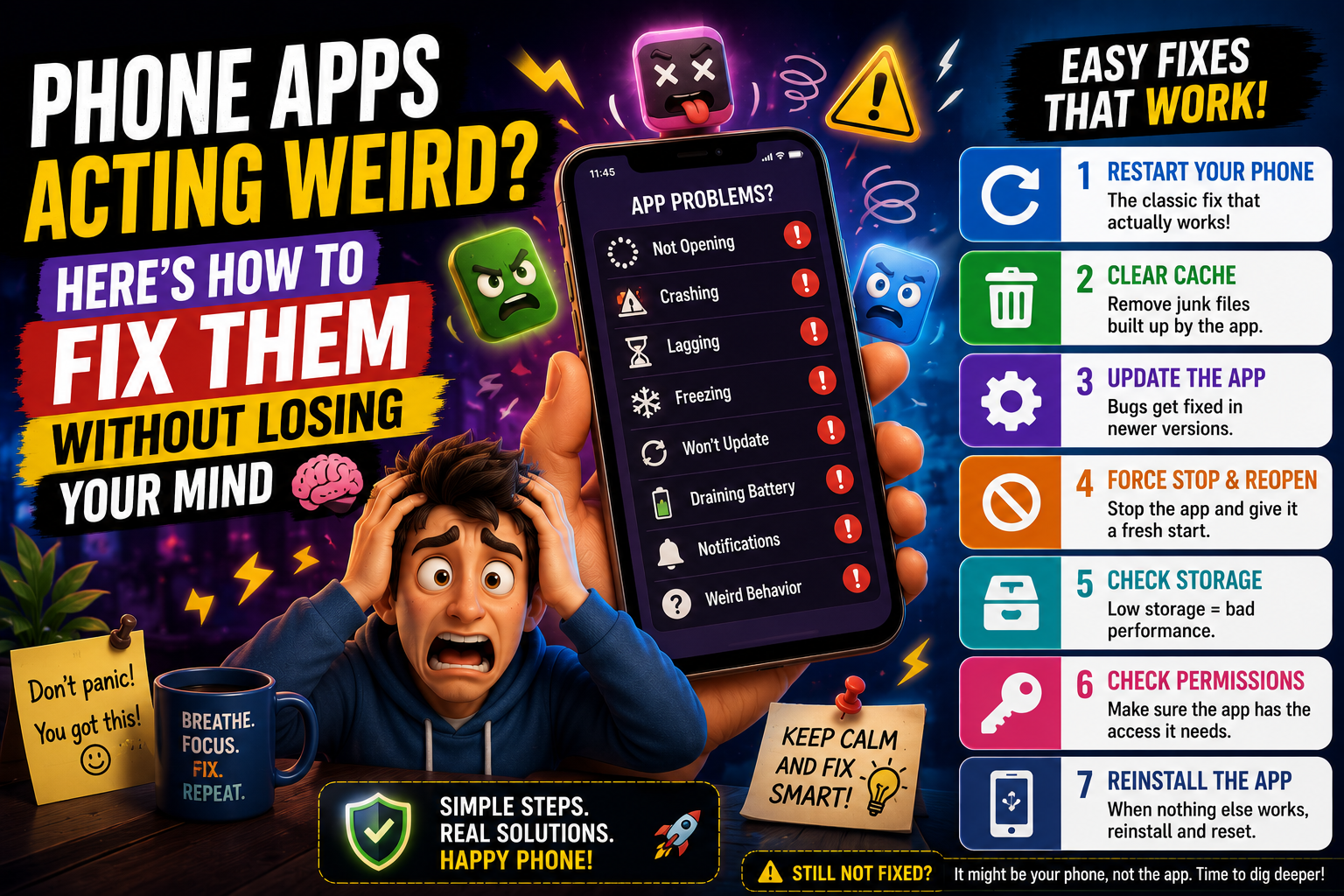
➤ Before fixes, here are the exact problems most people deal with daily. Pick yours:
Freezes mid-conversation or crashes when opening media
Full charge gone by lunch — even without heavy use
Apps take ages to open, typing lags, switching apps stutters
Gets warm or hot during normal tasks like browsing or calls
Black screen on launch, freezes while taking photos
Pages won't load or videos buffer constantly even on good Wi-Fi
Step-by-Step Fixes — In the Right Order
➤ Follow these from top to bottom. Don't jump ahead. The simpler fixes solve the problem more than 70% of the time. <:)>
1. Force Close the App, Then Reopen It
Don't just press Home. Fully close the app from your recent apps panel, wait 5 seconds, then reopen it. This clears the app's active memory state and fixes most one-off crashes instantly.
Android: Recent Apps → Swipe awayiPhone: Swipe up → Swipe app off screen
2. Restart Your Phone — Properly
A restart clears RAM, stops background processes that are misbehaving, and refreshes all system services. Most people restart their phone once a week at most. It should be closer to every 2–3 days if you use it heavily. You'll notice the difference immediately. <:)>
Works on Both: Hold power button → Restart
3. Clear the App's Cache
Every app builds up a cache of temporary files to load faster. Over weeks and months, this cache grows large and can get corrupted — which causes slowness, crashes, and freezing. Clearing it is completely safe. Your account and data stay intact.
Android: Settings → Apps → [App name] → Storage → Clear CacheiPhone: Offload the app in Settings → General → iPhone Storage
4. Update the App
Open the Play Store or App Store, go to your profile, and check for pending updates. Developers patch bugs constantly — the crashing version you're running might already have a fix waiting. Enable auto-updates if you don't want to do this manually.
Android: Play Store → Profile → Manage apps & deviceiPhone: App Store → Profile → Available Updates
5. Free Up Storage Space
When your phone storage goes above 85–90% full, everything starts suffering — apps crash more, the camera struggles, and the phone slows down overall. Delete unused apps, clear WhatsApp media you don't need, and move photos to Google Photos or iCloud.
Android: Settings → Storage → Free up spaceiPhone: Settings → General → iPhone Storage
6. Update Your Phone's Software
Android and iOS updates aren't just about new features — they fix performance bugs, security holes, and compatibility issues with apps. If your OS is more than 2–3 months behind, it's worth updating. Connect to Wi-Fi first, plug in your charger, then go to Settings → Software Update.
Settings → General (iOS) or About Phone (Android) → Software Update
7. Uninstall and Reinstall the Problem App
If the app is still misbehaving after all the above, uninstall it completely, restart your phone, then reinstall it fresh from the official store. This fixes corrupted install files that cache-clearing alone can't touch. Log back in and test. Most of the time, this is the final fix needed. <:)>
Long press app icon → Uninstall → Restart → Reinstall from Store
Fixes for Your Actual Daily Apps
➤ General advice is fine, but you came here for specific problems. Here's what to do for the apps you actually use every day:
📸Instagram / Reels freezing or black screenClear Instagram's cache first. If that doesn't work, go to Settings → Apps → Instagram → Clear Data (not just cache). You'll need to log in again, but it fixes deep corruption issues. Also check if your phone storage is below 15% — Instagram Reels needs breathing room to buffer.
🏦Banking app not loading or freezing on payment screenBanking apps are extra sensitive to cached data. Always clear cache before important transactions if you've been having issues. Also make sure your phone's date and time are set to automatic — wrong time settings break security certificates and cause bank app failures silently. <:)>
🗺️Google Maps or navigation app freezing mid-routeThis is almost always a RAM issue. Close all other apps before starting navigation. Also check that location permissions are set to 'Always On' for the maps app, not just 'While Using' — switching modes mid-trip confuses the app and causes freezes.
📹YouTube buffering even on good Wi-FiClear YouTube's cache. Then go to YouTube Settings → Video quality preferences and set a default quality instead of 'Auto.' Auto quality switching is often the actual cause of buffering — it constantly reassesses and causes micro-pauses that feel like buffering.
Is Your Phone's Storage Hurting Your Apps?
➤ Here's a simple way to think about phone storage and what it means for app performance:
➤ If you're in the red zone, don't buy a new phone yet. Move your photos to Google Photos (free, 15GB) or iCloud. Delete downloaded videos you've already watched. Clear WhatsApp media. That alone usually frees 3–8 GB on most phones. <:)>
What to Do vs. What to Avoid
✅ DO THESE
➤Restart phone every 2–3 days
➤Keep storage below 80% full
➤Update apps weekly
➤Clear cache monthly for heavy apps
➤Back up photos to cloud regularly
➤Check battery usage weekly
❌ AVOID THESE
➤Installing 'RAM booster' apps
➤Clearing ALL app data carelessly
➤Downloading APKs from random sites
➤Ignoring software update alerts
➤Running 20+ apps open in background
➤Charging phone to 100% every night
Questions People Actually Search For
Q1 — Why does my phone slow down after a software update?
➤ New OS versions are optimized for newer hardware. If your phone is 3+ years old, an update can push it harder than the hardware is designed for. Give it 2–3 days after updating — the phone re-indexes files in the background. If it stays slow after a week, go to Settings → Storage and check what's eating space. Clearing app caches after a major update helps significantly.
Q2 — My WhatsApp messages are sending but the app keeps crashing. Why?
➤ This usually means the app's database file is getting too large or slightly corrupted. Go to WhatsApp → Settings → Storage and Data → Manage Storage. Sort by size and delete large media files. Then clear the app cache in phone settings. If it continues, back up your chats, uninstall, and reinstall. Your chat history will restore from the backup.
Q3 — Is it okay to just ignore app update notifications?
➤ For a short time, yes. But ignoring them for months means you're running versions with known bugs and potential security holes. This is especially risky for banking, email, and social apps. Set aside 10 minutes once a week to update everything. It's the cheapest and easiest maintenance you can do for your phone. <:)>
Q4 — Why does my phone get hot when I watch videos or use the camera?
➤ Light warmth is normal — the processor is working. But if it gets uncomfortably hot, check battery usage to see if a background app is running constantly (Facebook, email sync, and live wallpapers are common offenders). Also try removing your phone case while charging and during heavy use — cases trap heat significantly. If overheating happens even on simple tasks, that points to a background process gone rogue.
Q5 — Should I factory reset my phone to fix software problems?
➤ Factory reset is a last resort, not a first step. The fixes in this guide solve the problem 90% of the time without wiping anything. Only consider a factory reset if multiple apps are failing simultaneously, the phone is randomly rebooting on its own, or a system-level error keeps reappearing despite updates and reinstalls. Always back up everything first if you do go that route. <:)>
Final Thoughts
➤ Your phone doesn't need to be replaced every time something goes wrong. Most software problems — even the ones that feel serious in the moment — come down to a few simple things: too little storage, outdated apps, a cache that needs clearing, or just a restart that's long overdue.
➤ The fixes in this guide are the same ones used by people who work with phones professionally. There's no magic — just understanding what the problem actually is, and fixing that specific thing. Give your phone the same basic maintenance you'd give anything else you rely on daily, and it'll serve you well for years.
Try the simplest fix first. Most of the time, that's the one that works. <:)>