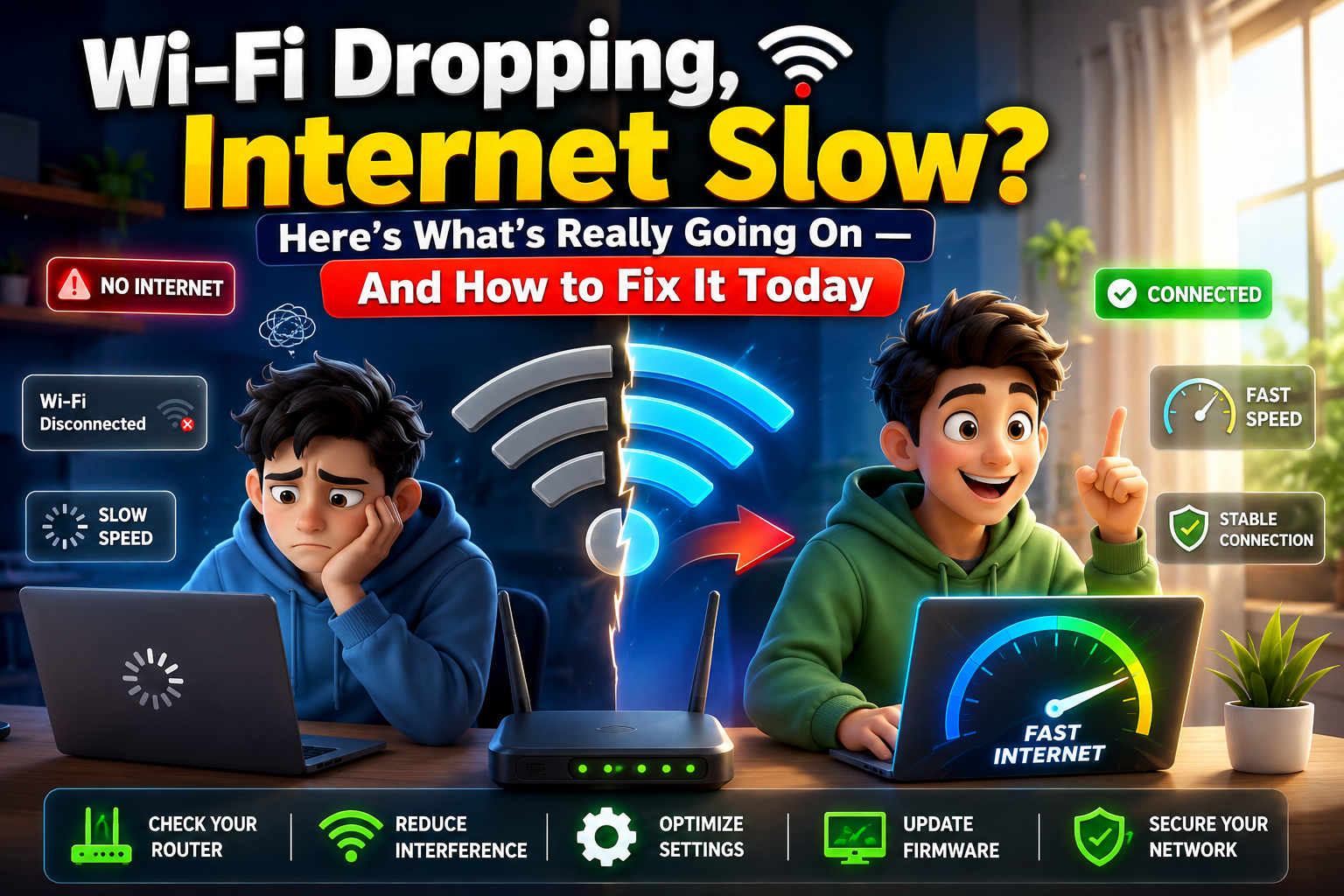
It was a Tuesday night. Video call with the team — important one. Halfway through the presentation, the connection drops. You rejoin. It drops again. Your router is three feet away. Full signal bars. But the internet is acting like it's 2003 on a dial-up connection.
If that sounds familiar, you're in the right place. Network problems are maddening because they feel invisible — you can't see what's wrong, you can't hold the problem in your hands, and half the time your ISP just tells you to restart the router. Again.
➤ Here's what most network troubleshooting guides won't tell you: the problem is almost never just "the internet." It's a chain — your device, your router, your modem, your ISP's line, and the actual internet beyond that. The fix lives somewhere in that chain. This guide helps you find it fast. 🙂
Why Network Problems Feel So Random
➤ Before you throw your router out the window, it helps to understand why connectivity problems behave the way they do. Your internet connection isn't one thing — it's a handshake between multiple systems happening thousands of times per second. When any single part of that handshake breaks down, everything falls apart.
Most people assume the router is always the villain. Sometimes it is. But plenty of times it's a device driver issue, a crowded Wi-Fi channel in a dense apartment building, a failing ethernet cable that looks perfectly fine, or a DNS server that's quietly choking on requests. 🙂
📡Overcrowded Wi-Fi Channel
All your neighbors' routers fighting for the same wireless channel — invisible interference you can't see but absolutely feel.
🔁Router Needs a Reset
Routers run 24/7 and accumulate memory leaks and stuck connections over weeks. A restart fixes more than people expect.
🌡️Overheating Hardware
Routers tucked in cabinets or stacked under other devices throttle speeds when they overheat. Hot router = slow internet.
🦠Outdated Firmware
Router firmware nobody updates for years — full of bugs, performance issues, and security gaps that affect connection stability.
📶Wrong Frequency Band
Connecting a device far from the router on 5GHz instead of 2.4GHz — faster band, but terrible range. Wrong tool for the distance.
🌐ISP-Side Problem
The issue is outside your home entirely — outage, line degradation, or congestion during peak hours in your area.
Step-by-Step Network Troubleshooting
➤ Work through these in order. Don't skip ahead. The most common mistakes people make is jumping straight to complex fixes when a basic step would have solved it in 30 seconds.
Run a speed test — and do it right
Go to fast.com or speedtest.net and run it three times — once on Wi-Fi, once with a device plugged directly into your router via ethernet, and once at different times of day. If your ethernet speed matches what you're paying for but Wi-Fi is slow, the router broadcast is the problem. If both are slow, it's your ISP or modem. Those are completely different fixes. 🙂
Restart everything — in the right order
Power off your modem first. Wait 60 full seconds — not 10 seconds, sixty. Then power the modem back on and wait until all its lights stabilize (usually 2 minutes). Then restart your router. Then reconnect your devices. This sequence clears the connection state with your ISP and often resolves drops that have been happening for days.
Check which band you're connected to
Modern routers broadcast on two frequencies: 2.4GHz and 5GHz. The 5GHz band is faster but its range is roughly half of 2.4GHz. If you're two rooms away from the router and connected to 5GHz, you'll get drops and slowness even though the signal looks "good." Switch to 2.4GHz for distance. Use 5GHz only when you're in the same room or next room as the router.
Change your DNS server
Your ISP's default DNS servers are often slow or inconsistent. Open your router's admin panel (usually by typing 192.168.1.1 or 192.168.0.1 in your browser). Find DNS settings and change them to 1.1.1.1 (Cloudflare) or 8.8.8.8 (Google). This single change can dramatically improve browsing speed and fix "website not loading" issues that have nothing to do with your actual internet speed. 🙂
Update your router's firmware
Log into your router's admin panel, go to the settings or maintenance section, and look for a firmware update option. Manufacturers push regular updates fixing stability bugs, security holes, and performance issues. If your router is running firmware from 2021, you're probably experiencing problems that were patched two years ago. This takes five minutes and makes a real difference.
Change your Wi-Fi channel
In dense apartments and neighborhoods, dozens of routers compete on the same channels. Download a free app like "Wi-Fi Analyzer" on Android or use "Wireless Diagnostics" on Mac to see which channels around you are crowded. In your router admin panel, manually switch to a less congested channel — often 1, 6, or 11 on 2.4GHz. The improvement can be instant and dramatic.
💡 Real World Example
A work-from-home user in a busy apartment building was getting constant video call drops despite having a 500Mbps plan. After running a Wi-Fi analyzer, turns out 11 neighboring routers were on the same channel. Switching to channel 11 — which had zero neighbors — solved it completely. Same router, same plan, zero drops since.
What Your Speed Numbers Actually Mean
➤ Not all slow speeds mean the same thing. Here's how to read your results honestly.
| Situation | Likely Cause | Where to Fix It |
|---|---|---|
| Ethernet fast, Wi-Fi slow | Router broadcast issue | Router settings or placement |
| Both slow at all times | Modem or ISP line issue | Call your ISP |
| Slow only in evenings | ISP peak-hour congestion | Upgrade plan or switch ISP |
| One device slow, others fine | Device driver or setting | Update network adapter driver |
| Speed fine but pages don't load | DNS issue | Switch to 1.1.1.1 or 8.8.8.8 |
| Randomly drops then reconnects | Channel interference or router memory | Change channel, schedule router restart |
Common Mistakes That Make It Worse
⚠️ Worth Knowing
If you share your Wi-Fi password casually with many people — neighbors, guests, visitors — check how many devices are currently connected in your router admin panel. A router with 35 connected devices (old phones, tablets, smart bulbs, neighbor's laptop from six months ago) will slow down and drop connections. Changing your Wi-Fi password periodically is not rude. It's maintenance. 🙂
Recommendations for a Reliable Network
Position Matters More Than Power
A mid-range router in a central, elevated, open position beats a premium router stuffed in a corner. Placement is the most underrated network upgrade that costs nothing.
Go Wired for Anything Important
Gaming, video calls, work-from-home? Ethernet cable from device to router eliminates 90% of connectivity complaints. Wi-Fi is convenient — wired is reliable.
Consider a Mesh System for Large Homes
If your home is over 1,500 sq ft and you have dead zones, a single router won't solve it. A mesh system (like Eero or TP-Link Deco) provides seamless coverage throughout.
Keep Your Router's Firmware Current
Check for firmware updates every 3 months. It takes 5 minutes and fixes bugs you didn't know were slowing you down. Enable auto-update if your router supports it.
Schedule Weekly Router Restarts
Most routers let you set an automatic weekly restart in their admin panel. Do it at 3am on a day you choose. Fewer random drops, fresher connections. 🙂
Use Quality of Service (QoS) Settings
Most modern routers have QoS settings that let you prioritize video calls or gaming over background downloads. Find it in your router admin panel under "QoS" or "Bandwidth Control."
💡 Technician Insight
The most underdiagnosed home network problem I've seen repeatedly: a single aging ethernet cable between the modem and router that looks fine but has a damaged internal wire. It causes random drops that no amount of router resetting or setting-changing will fix. If you have persistent drops and nothing else works, swap that cable. A new Cat6 ethernet cable costs $8.
Real Questions, Honest Answers
Q My internet works fine on my phone but not on my laptop. Same Wi-Fi. Why?
This is almost always the laptop's network adapter driver — not your router or internet. Open Device Manager on Windows, expand Network Adapters, right-click your Wi-Fi adapter, and select "Update Driver." If that doesn't help, try "Uninstall Device" and restart — Windows reinstalls the driver automatically. This fixes the problem in most cases within 5 minutes. 🙂
Q My router shows full signal but speed is still terrible. How?
Signal strength and speed are not the same thing. You can have 4 full bars on an overcrowded channel and still get terrible throughput. Think of it like a crowded highway — all lanes are open (full signal) but traffic is bumper to bumper (congested channel). Switch to a less congested Wi-Fi channel in your router settings and re-run the speed test. Usually makes a dramatic difference.
Q Is it worth buying my own router instead of using the ISP's?
In most cases, yes — especially if your ISP-provided router is more than 3 years old. A quality third-party router like TP-Link Archer, ASUS RT series, or Netgear Nighthawk will outperform the average ISP unit significantly. You'll pay $60–$150 upfront but save on monthly rental fees your ISP may charge, and get notably better range and stability. 🙂
Q My internet is slow only during the evening. My ISP says everything is fine. What's happening?
This is ISP-side congestion — real, common, and frustrating. In the evenings when everyone in your neighborhood is streaming, your ISP's local infrastructure gets overloaded. Run speed tests at 2am and at 7pm on the same day and compare. If there's a massive gap, that's the evidence you need to push back with your ISP or consider switching providers. Some ISPs are notably worse for this than others in specific regions.
Q How far can a Wi-Fi signal actually reach?
In ideal open conditions, 2.4GHz can reach around 150 feet and 5GHz around 50–75 feet. In a real home with walls, floors, appliances, and furniture in the way, cut those numbers roughly in half. Concrete walls and floors reduce range dramatically. A basement device connecting to a router on the second floor is fighting significant signal loss — a Wi-Fi extender or mesh node placed on the main floor between them is usually the right fix. 🙂
➤ Network problems are annoying precisely because they interrupt everything else you're trying to do. You can't work, can't stream, can't call — and the cause is completely invisible. But once you understand that the problem lives somewhere in a chain — device, router, modem, ISP line — troubleshooting becomes a lot less frustrating and a lot more logical.
Start with the basics every time. Run a wired speed test first. Restart in the right order. Check your channel. Update your firmware. Then go deeper only if needed. Most network problems, in my experience, get solved before you even reach the advanced steps. 🙂
And if you've genuinely exhausted every option and the problem is still there — your ISP owes you a line technician visit. Don't let them keep telling you to restart the router for the fifteenth time. Demand an in-person check of the physical line coming into your home. That cable outside degrades over years and causes exactly the kind of intermittent problems that are impossible to diagnose remotely.