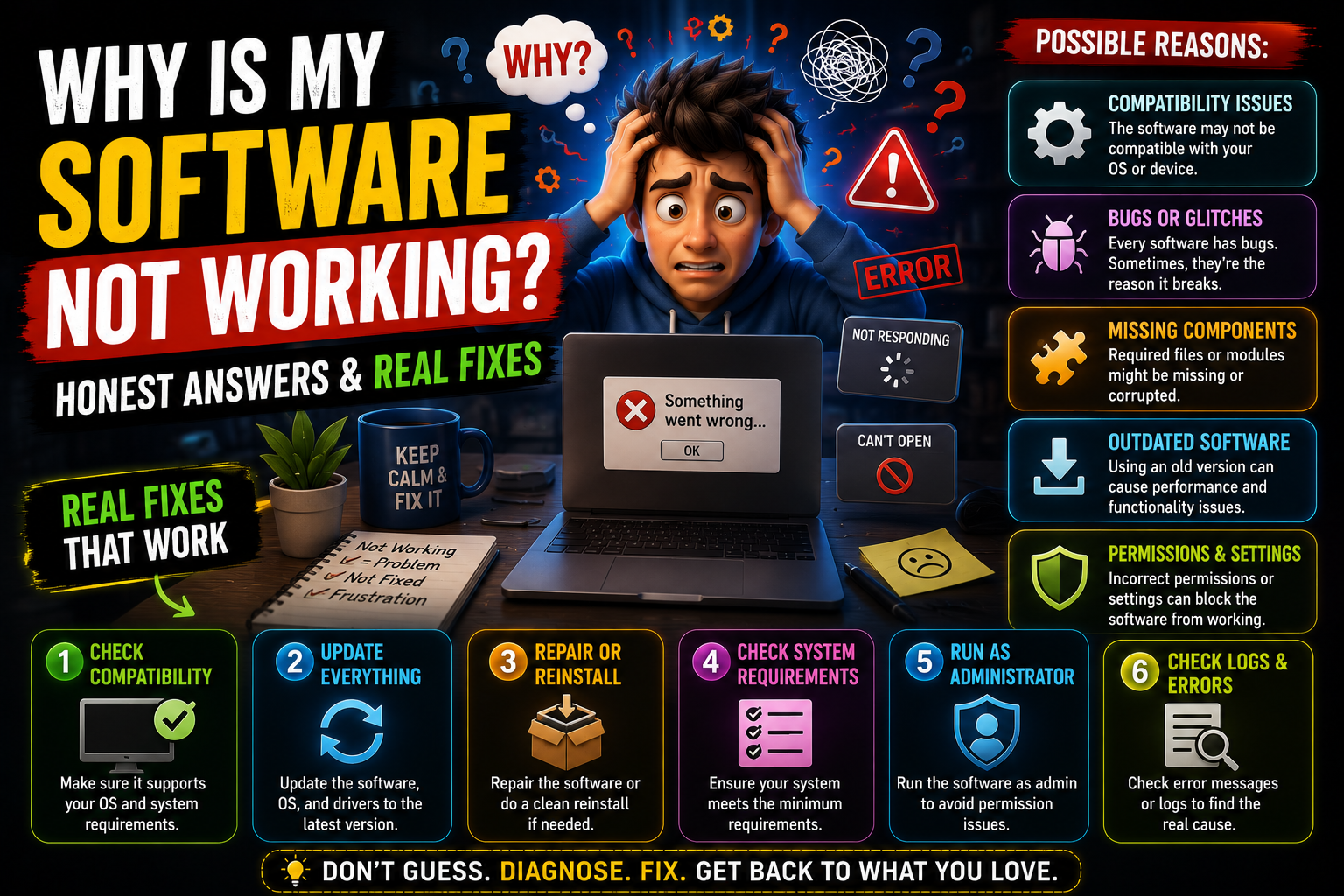
You didn’t touch anything. You didn’t change anything. You just opened your laptop like every other morning — and the software that was working perfectly yesterday is now throwing errors, refusing to open, or freezing solid. Sound familiar? <:)>
Here’s the honest truth: software breaks more often than the tech industry likes to admit. Updates go wrong. Files get corrupted. Drivers fall behind. But almost every single one of these problems has a logical fix — and you don’t need an IT degree to find it. Let’s get into it.
Crash vs. Freeze — They’re Not the Same Thing
➤ Most people use “crash” and “freeze” to mean the same thing. They’re actually different problems with different causes. Getting this right helps you find the fix faster.
| What Happens | What It’s Called | Most Likely Cause |
|---|---|---|
| App closes suddenly, sometimes with an error message | Crash | Corrupted file, missing dependency, code bug |
| App stays open but stops responding entirely | Freeze / Hang | RAM overload, CPU spike, driver conflict |
| App opens and immediately shuts | Instant Crash | Missing runtime (like .NET), permissions issue |
| App becomes slow, then eventually dies | Progressive Freeze | Memory leak inside the app, disk near full |
➤ Knowing which type you’re dealing with cuts your troubleshooting time significantly. A freeze tells you to look at system resources. A crash tells you to look at the app itself. <:)>
The Real Reasons Software Breaks
➤ Before touching a single setting, it helps to understand what actually causes software problems. Not surface-level explanations — actual root causes.
A freelancer in Texas was losing her mind over Zoom crashing every time she tried to share her screen. She’d uninstalled it twice. Still crashed. After forty minutes of digging, she found the culprit — her NVIDIA driver was almost two years old. One driver update, five-minute restart, and Zoom worked perfectly. The software itself was never the problem.
This is more common than you’d think. The app gets blamed. The driver was guilty the whole time. <:)>
Step-by-Step Fixes — Start Here, Work Down
➤ Go through these in order. Don’t skip to the complicated stuff first. The boring, basic fixes solve the problem more often than anything else.
Restart Your Computer Properly
Not sleep. Not closing the lid. An actual full restart. This clears memory, resets background processes, and removes temporary junk that builds up during regular use. It’s not exciting advice — but it works embarrassingly often. <:)>
Update the Software From Inside the App
Go to the Help or Settings menu inside the app and look for “Check for Updates.” Developers push bug fixes constantly. If your version is even a few months old, you might already be running a version with a known flaw that’s been patched in a newer release.
Update Your Graphics and System Drivers
On Windows: right-click the Start button → Device Manager → Display Adapters → right-click your GPU → Update Driver. If you have NVIDIA, use GeForce Experience. AMD users should use AMD Adrenalin. This single step fixes a huge percentage of crashes in creative and gaming software.
Run the App as Administrator
Right-click the app shortcut → “Run as Administrator.” Some programs need elevated system permissions that your regular account doesn’t automatically grant. This is especially true for older software, system utilities, and some games.
Clear the App’s Cache and Temp Files
Every app stores temporary files to load faster. When those files get corrupted — which happens gradually over time — the app starts misbehaving. Clearing cache is safe. Most apps have this option in their Settings menu. For browsers, it’s under Privacy → Clear Browsing Data.
Do a Clean Uninstall, Then Reinstall
On Windows: Settings → Apps → find the software → Uninstall. Important: restart your PC before you reinstall, not after. Then download the installer directly from the official website — not a third-party host. A full fresh install clears out anything the partial fixes left behind.
Check for Pending Windows or macOS Updates
An out-of-date operating system has unpatched bugs that affect how apps run. Windows: Settings → Windows Update. Mac: System Settings → General → Software Update. Run whatever’s pending, restart, and test the software again.
Check Available Storage and RAM
If your hard drive is more than 90% full, software will start failing in weird ways. As a rule: keep at least 10–15% free at all times. Open Task Manager (Ctrl+Shift+Esc on Windows) and watch RAM usage while the app runs. If it’s consistently above 90%, the app is starving for memory.
⚠️ Don’t skip this: Before any reinstall, always check if the app uses a local database or settings file you might want to back up first — like game saves, project files, or custom configurations. A fresh install won’t touch those in most cases, but it’s worth double-checking.
Three Specific Situations & What to Do
➤ The App Opens Then Immediately Closes
➤ This almost always points to a missing dependency — a required component the app needs but can’t find. On Windows, search “Event Viewer” in the Start menu, go to Windows Logs → Application, and look at the error entries near the time the app crashed. The log often names the exact file that failed. Common fixes: install or repair Microsoft Visual C++ Redistributable and .NET Framework from Microsoft’s official site.
➤ The App Was Working, Then a System Update Broke It
➤ This is frustrating because you didn’t do anything wrong — the OS just changed something the app relied on. First, check the software developer’s website or official community forums. They usually post compatibility notices within 24–48 hours of a major OS update. While waiting for a patch, try the app in Compatibility Mode: right-click the app → Properties → Compatibility tab → select an older Windows version.
➤ The App Works Fine on Another Account But Not Yours
➤ Your personal app data or settings profile is corrupted — not the software installation itself. The fix: locate the app’s local data folder (usually in C:\Users\YourName\AppData\Local or Roaming) and rename or delete the folder specific to that app. The app will rebuild a fresh profile on next launch. <:)>
Mistakes That Make Things Worse
Frequently Asked Questions
Q1Why does my software crash only on certain days or at certain times?
➤ Pattern-based crashes often point to scheduled background tasks running at the same time — antivirus scans, backup software, or Windows Update. Check Task Scheduler (search it in Start) to see what’s running when the crashes happen. Also check for overheating — laptops placed on soft surfaces can throttle and crash after extended use.
Q2Is it worth reinstalling Windows to fix a software problem?
➤ Rarely, and it should be your absolute last resort. A clean reinstall of the specific software, driver updates, and clearing corrupted app data will solve the problem in the vast majority of cases without touching the OS. Only consider a Windows reinstall if multiple unrelated apps are failing and system file checker (sfc /scannow in Command Prompt) reports corruption it can’t repair.
Q3Can too many browser tabs actually cause other software to crash?
➤ Yes, genuinely. Chrome and Edge are notorious memory consumers. Fifty open tabs can consume 4–6 GB of RAM by themselves, leaving almost nothing for other applications. If your software crashes while your browser is heavily loaded, close unnecessary tabs or use a tab-suspending extension, then test again.
Q4Should I use third-party “PC cleaner” or “registry cleaner” tools?
➤ Be very careful here. Most free registry cleaners are either useless, aggressive, or bundled with unwanted software. Windows is much better at managing its own registry than it used to be. If you want to clean up junk files, use Windows’ built-in Disk Cleanup tool or the Storage Sense feature in Settings — both are safe and actually work.
Q5How do I stop software problems from happening in the future?
➤ A few habits go a long way: restart your machine at least once a week, update drivers every couple of months, keep 15% of your drive free, and don’t install software from unverified sources. Also — back up your important files regularly. Even when software problems happen, good backups mean you never lose anything that actually matters. <:)>
Final Thoughts
➤ Here’s the thing about software problems that nobody really says out loud: they happen to everyone. Tech professionals, developers, people who build the software themselves — everyone deals with crashes, freezes, and errors. The difference isn’t knowing some secret fix. It’s staying calm and being methodical.
➤ Read the error. Try one fix at a time. Restart between attempts. Check the drivers before you blame the app. And when nothing makes sense, check the official forums — someone else has almost certainly hit the same wall and found a way through it. <:)>
➤ Software will keep breaking. That’s just the nature of complex systems running on millions of different hardware combinations. But it’s almost never permanent — and now you have a real roadmap for dealing with it.