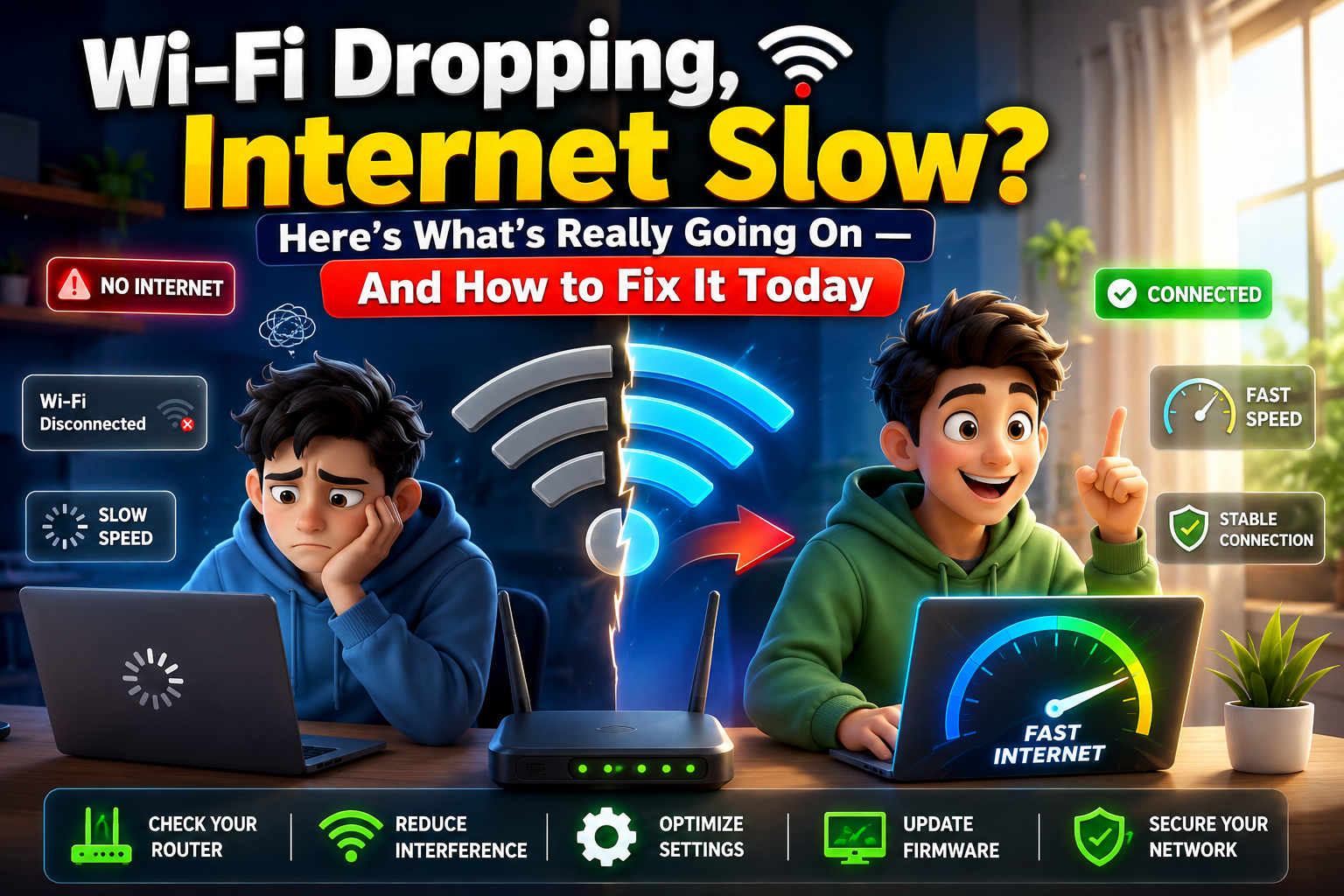
There's a specific kind of frustration that comes from staring at a Wi-Fi icon showing perfect signal while your browser spins forever and your video call freezes mid-sentence. It feels like the universe is personally mocking you. The router looks fine. The modem looks fine. Everything looks fine — and nothing works.
Here's what took me a long time to understand: signal strength and actual connection quality are two completely different things. Your device can be "connected" and simultaneously getting almost nothing useful done. This guide explains the gap — and more importantly, closes it. 🙂
➤ Most people approach network problems the wrong way — they restart the router, wait five seconds, get frustrated when nothing changes, and then either call their ISP or live with the problem. Neither of those is a real solution. What actually works is understanding the difference between the signal your device sees and the connection quality your applications are actually receiving.
Reality Check: The Myths Keeping You From Fixing Your Network
➤ Before we get into fixes, let's clear out the bad advice that's been slowing people down for years. These myths are everywhere — and believing them means spending hours on the wrong problem. 🙂
✓ The Reality
❌ The Myth
✓ The Reality
❌ The Myth
✓ The Reality
❌ The Myth
✓ The Reality
DiagnoseFind Your Problem in Under 3 Minutes
Diagnose: Find Your Problem in Under 3 Minutes
What You're Experiencing
| Most Likely Cause | Difficulty | Wired fast, Wi-Fi slow |
|---|---|---|
| Router broadcast or channel congestion | Fix at Home | Both wired and wireless slow |
| Modem issue or ISP line problem | Call ISP | One device slow, rest fine |
| Device driver or network adapter | Fix at Home | Pages fail but speed test passes |
| DNS server failure | Fix at Home | Slow evenings only |
| ISP peak-hour congestion | Escalate to ISP | Drops near kitchen appliances |
| 2.4GHz interference from microwave/phone | Fix at Home | Random drops, no pattern |
| Aging modem, firmware bug, or bad cable | Moderate Fix | Good speed but video call choppy |
| High jitter or packet loss — not bandwidth | Moderate Fix | Fix ItThe Right Steps in the Right Order |
Fix It: The Right Steps in the Right Order
➤ These steps are sequenced deliberately — each one narrows down what's wrong so you're not randomly trying things. Work through them in order and stop when your problem disappears. 🙂
Do the bypass test — the most important step nobody does
Unplug your router entirely. Connect your laptop or PC directly to the modem using an ethernet cable. Run a speed test at fast.com right now. If your speed matches your plan, your modem and ISP line are both fine — the problem is in your router or home network. If speed is still wrong, the problem is outside your home. This single test saves hours of chasing the wrong thing.
Restart the right way — order matters more than people think
Unplug the modem from power. Walk away for a full 60 seconds. Don't cheat this — the modem needs time to fully clear its connection state with your ISP. Plug the modem back in, watch the lights, and wait until every indicator stabilizes — this takes 90 to 120 seconds on most modems. Only then restart your router. Give it 45 seconds before connecting anything. This sequence forces a fresh DHCP lease and clears connection table corruption that a quick restart misses entirely. 🙂
Change your DNS — takes 4 minutes, often fixes "broken internet" instantly
Your ISP's DNS servers translate website names into IP addresses. When they're slow or failing, websites appear broken even though your connection is physically fine. Open your router's admin panel by typing 192.168.1.1 in your browser. Log in with credentials printed on the router label. Find DNS settings. Set primary to 1.1.1.1 and secondary to 1.0.0.1 — Cloudflare's public DNS, which is both faster and more reliable than most ISP defaults. Save and restart your router.
Switch your Wi-Fi channel manually — stop letting the router decide
Your router defaults to "Auto" channel selection — which sounds smart but often plants you on the most crowded channel in your building. On Android, install Wi-Fi Analyzer (free) to see which channels your neighbors occupy. On Mac, hold Option and click the Wi-Fi icon → Open Wireless Diagnostics → Window → Scan. In your router admin panel under Wireless Settings, switch from Auto to a specific channel. On 2.4GHz use channels 1, 6, or 11. Pick the one with fewest competing networks. 🙂
Update your router firmware — not optional, never skip this
Router manufacturers push firmware updates that fix stability bugs, security vulnerabilities, and performance issues. Most people never update their router's firmware — ever. Log into your router admin panel and look for "Firmware Update," "Software Update," or check under Advanced Settings. If your firmware is from 2022 or earlier, you're likely running a version with known bugs that affect connection stability. The update takes about 5 minutes and your router restarts automatically.
Fix your router's physical environment
Pick up your router and hold it. If it's warm — fine. If it's genuinely hot, it's throttling itself from heat and your speeds are suffering as a direct result. Move it out of any enclosed space. Put it somewhere elevated with airflow on all sides. Keep it away from microwaves, baby monitors, and cordless phone bases — all broadcast on 2.4GHz and create direct interference with your Wi-Fi. Position it as centrally in your home as possible rather than tucked in a corner near the front door. 🙂
Flush your DNS cache on the device itself
Sometimes the problem isn't the DNS server — it's stale DNS information cached on your device pointing to old IP addresses. On Windows, open Command Prompt as Administrator and run ipconfig /flushdns. On Mac, open Terminal and type sudo dscacheutil -flushcache; sudo killall -HUP mDNSResponder. On Android and iPhone, toggling airplane mode on and off for 10 seconds achieves the same effect. This fixes "site not found" errors for specific websites that work fine on other devices.
💡 The Story Nobody Tells You
A small business owner was convinced her office internet was broken — pages wouldn't load, emails failed to send, her booking system crashed constantly. Her ISP ran remote diagnostics and said everything was fine. Speed tests showed 200Mbps. But DNS had silently failed on her router two weeks earlier when a firmware bug corrupted the settings. Switching to 1.1.1.1 fixed 100% of the problems in under five minutes. Her ISP had no idea — remote diagnostics can't catch DNS misconfiguration on a customer's router.
Understand: What Your Router Is Actually Doing Right Now
➤ Most people have never opened their router's admin panel. That's where all the real information lives. Here's what you'll find and what it tells you. 🙂
Inside Your Router Admin Panel — What Each Section Actually Means
📊Connected Devices
Shows every device currently on your network. More than 25? Congestion becomes real. Unfamiliar devices? Someone's on your Wi-Fi without permission.
📡Wireless Channel
If set to "Auto," your router picks the channel — often badly. Manual selection based on what your neighbors use makes a significant difference.
🌐DNS Settings
Whatever is here, change to 1.1.1.1 and 1.0.0.1. ISP defaults are almost always slower and less reliable than public alternatives.
⚡QoS / Bandwidth
Quality of Service lets you prioritize traffic — work laptop over smart TV, video calls over downloads. Find it under Advanced or Traffic Management.
🔄Firmware Version
If this hasn't been updated in over a year, there are almost certainly stability fixes waiting. Update it — takes 5 minutes, restarts automatically.
⏰Scheduled Restart
Set a weekly restart at 3am. Clears stuck connections, refreshes routing tables, prevents slowdowns caused by memory buildup over weeks.:)
Avoid: Mistakes That Make Network Problems Permanent
Upgrading your plan when the hardware is the problem
Paying for 1Gbps service won't help if your 7-year-old router can only push 150Mbps over Wi-Fi. Test your actual hardware limits before spending money on a faster plan. The router is almost always the bottleneck in older homes, not the plan.
Using a Wi-Fi extender to solve dead zone problems
Extenders create a separate network, cut bandwidth in half because they receive and retransmit on the same channel, and force your device to manually switch networks as you move. A mesh system is genuinely different — same network, seamless handoff, dedicated backhaul. For large homes, an extender is a band-aid. Mesh is the actual fix. 🙂
Trusting ISP remote diagnostics completely
ISP remote diagnostics test the signal level at your modem and ping their own servers. They cannot see your router's configuration, your DNS settings, your wireless channel congestion, or your internal network traffic. "Everything looks fine from our end" means their infrastructure is working — it tells you nothing about your home network.
Ignoring the cable between modem and router
That short ethernet cable connecting your modem to your router is years old, bent around furniture, possibly pinched under something heavy. Internally degraded cables cause intermittent drops that look exactly like a router problem. They cost $8 to replace and take two minutes. If you've tried everything and nothing works, replace that cable before anything else. 🙂
Never changing the Wi-Fi password after years of sharing it
Every person you've ever given your Wi-Fi password to — neighbors, guests, contractors, the delivery person — potentially still has a device that auto-connects. Forty connected devices competing for the same router resources is a real performance problem. Change your password once a year. It's maintenance, not rudeness.
🔐 Security Note While You're In the Admin Panel
While you're fixing network settings, take 90 extra seconds and change your router's admin password from the default. The default credentials — usually "admin / admin" or "admin / password" — are publicly listed for every router model. Anyone on your network can access your router admin panel with those defaults. Change the admin password to something unique while you're already logged in. 🙂
Tools: What Actually Helps — Free and Worth Having
📶Wi-Fi Analyzer (Android)
Shows all Wi-Fi networks around you, their channels, and signal strength. Essential for choosing the right channel for your router.Free on Play Store
⚡Speedtest / Fast.com
Test your real download and upload speeds. Always run it wired first, then wireless. The gap between those two numbers tells you a lot.Free — Browser
🖥️Wireless Diagnostics (Mac)
Hold Option + click Wi-Fi icon. Built-in tool shows channel usage, signal quality, and network scan. No download needed. Often overlooked.Built Into macOS
📡PingPlotter (Free Tier)
Visualizes packet loss and latency over time. If your video calls are choppy despite good speed, this tool shows you exactly where packets are being dropped.Free Tier Available
🔍Fing (Android / iOS)
Scans your network and shows every connected device — including ones you don't recognize. Essential for spotting unauthorized devices on your Wi-Fi.Free on App Stores
🛡️Router Admin Panel
192.168.1.1 or 192.168.0.1 in your browser. Free, always available, and contains everything you need to fix 80% of home network problems. Most people never open it.Built Into Your Router
⚠️ When to Demand a Line Technician
If your wired speed test directly from the modem is consistently below what your plan promises — especially if it varies wildly between tests — insist on a technician visiting your home to test the physical line. Not a remote diagnostic call. An actual person with a signal meter checking the line coming into your house. Line degradation from weather damage, aging coaxial cable, or a loose junction box connector causes exactly this kind of stubborn, inconsistent problem that no amount of home troubleshooting will ever fix. Document your speed tests with timestamps before you call. 🙂
FAQ: The Questions Everyone Has but Rarely Asks
My neighbors have the same ISP and their internet is fine. Mine is terrible. What does that mean?
It means the problem is specific to your connection — not a neighborhood-wide outage. The most likely cause is your individual line from the street junction box to your home, or your modem. Run a wired speed test directly from the modem and capture the results. Call your ISP, tell them specifically that neighboring accounts on the same service are working normally and yours is not, and request a technician to inspect the physical line coming into your home. That evidence gets you taken more seriously. 🙂
How many devices is too many for a typical home router?
Most budget and mid-range routers handle 20–25 simultaneous active connections comfortably. "Connected" devices and "active" devices are different — a smartphone that's connected but sitting idle uses almost no bandwidth. The issue is when 15+ devices are actively streaming, downloading, or communicating at the same time. If you have more than 30 devices connected total across smart home gadgets, phones, laptops, TVs, and tablets — consider a router with a stronger chipset or a mesh system designed for high device counts.
Why does my connection get better after a speed test but then slow down again?
Speed tests are relatively brief bursts of traffic — some ISPs detect speed test traffic and temporarily allocate better bandwidth to it, a practice sometimes called "speed test optimization." More practically, a speed test generates consistent traffic for 10–30 seconds while clearing any temporary caching in the connection path, which briefly improves performance before things settle back to their normal degraded state. If this happens consistently, it suggests your ISP has a congestion or traffic management issue affecting real-world use more than speed tests. 🙂
Is it worth buying a separate modem instead of renting one from my ISP?
Almost always yes, if your ISP allows it. ISP rental modems are usually older models and often cost $10–$15 per month in rental fees. A quality DOCSIS 3.1 modem costs $80–$130 upfront and pays for itself within a year. More importantly, you're not stuck with hardware the ISP never upgrades. Check your ISP's approved modem list before purchasing — compatibility is mandatory. Brands like Motorola, Netgear, and Arris make reliable consumer modems at reasonable prices.
My internet works fine on everything except one specific website. Why?
This is almost always a DNS or routing issue specific to that website, not a problem with your internet connection. First, try flushing your DNS cache (on Windows: ipconfig /flushdns in Command Prompt). Then try loading the site while connected to a mobile hotspot — if it works there, the issue is in your home network's routing. Switch your DNS to 1.1.1.1 and try again. If the site is unreachable from multiple networks, the problem is on the website's end — not yours at all. 🙂
➤ Network problems feel uniquely maddening because the internet has become so essential that any interruption disrupts everything at once — work, communication, entertainment, even smart home devices. The frustration is completely understandable.
But here's the honest truth after working through countless connection problems: the fix is almost always logical and almost always findable. The bypass test tells you which half of the chain is broken. The DNS change fixes what looks like broken internet but isn't. The channel switch solves what feels like a hardware problem but is really interference. The firmware update resolves what seems random but is actually a known bug.
➤ Work through the steps in order. Don't skip the bypass test. Don't assume the router is always the problem. Don't call your ISP until you have wired speed test data in hand. And if you've genuinely done everything here and the problem persists — the physical line outside your home is almost certainly where the answer is. That's your ISP's job to fix, and with documented evidence, you have every right to demand they do it properly. 🙂