📩 A note before we dive in
I want to start with something nobody in tech will say out loud. The reason most people can't fix their own network problems isn't because the problems are complicated. It's because the advice they find online is either too vague to act on, or written for someone with a networking degree. Neither helps you when your Zoom call just died mid-sentence and your boss is waiting.
So let's skip the theory lecture. Everything in this guide is practical — the kind of stuff that actually works in a real home with a real router from a real ISP. 🙂
➤ Network and connectivity issues are the most common tech complaint in households today — and honestly, they've gotten more complicated, not simpler. Between smart TVs, tablets, laptops, phones, smart speakers, and gaming consoles all fighting for the same Wi-Fi, your router is working harder than it ever was designed to. Understanding even the basics of how your connection actually flows gives you a massive head start on diagnosing what went wrong.
The One Thing You Need to Understand First
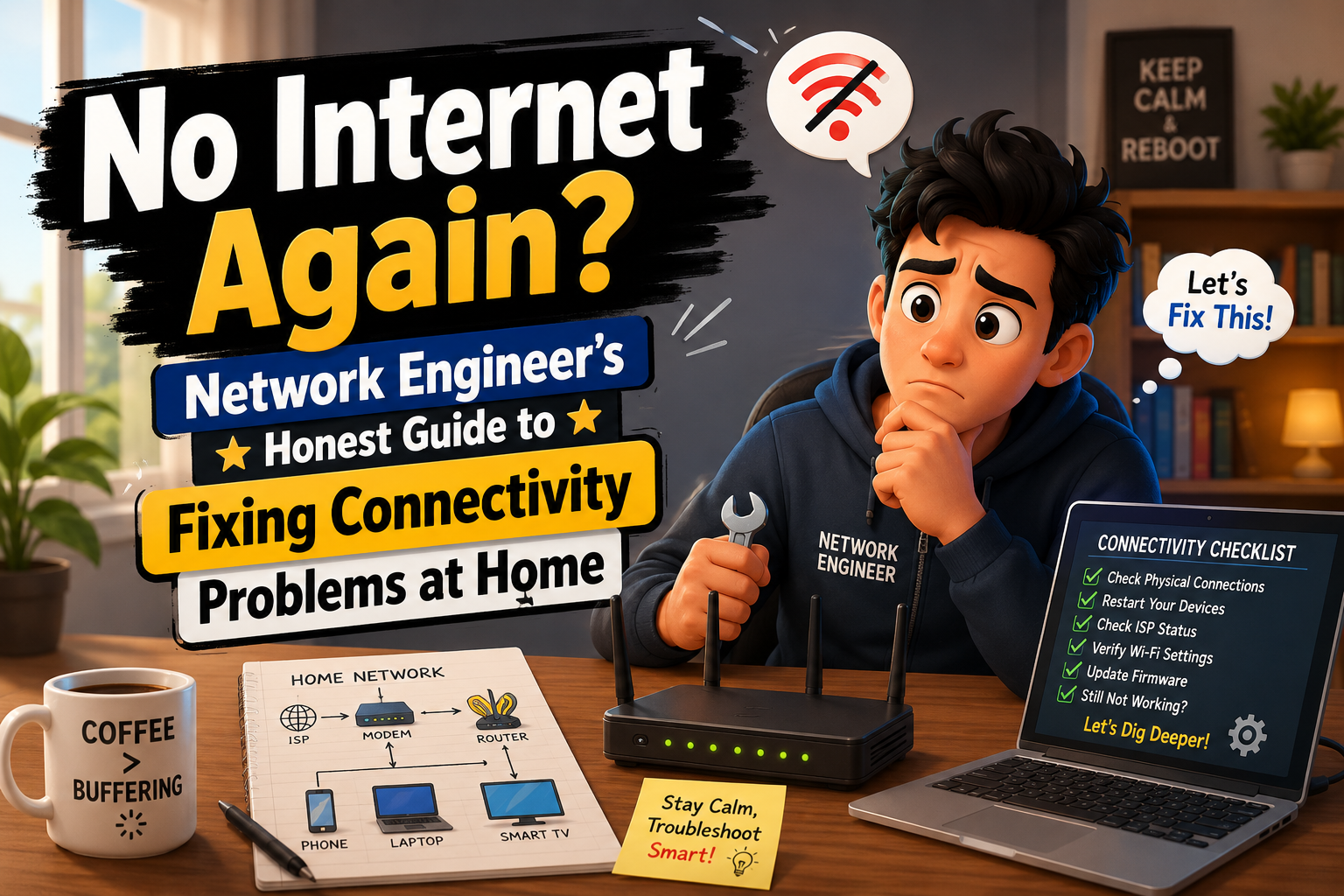
➤ Your internet connection isn't a single thing — it's a chain. Data travels from the internet, through your ISP's infrastructure, into your modem, through your router, over Wi-Fi or cable, and finally to your device. Every single link in that chain can be the problem. And the fix is always in a different place depending on which link broke.
➤ This is why restarting the router sometimes works and sometimes doesn't. If the problem is at your ISP's end or in the modem, no amount of router restarting will fix it. You need to test each link in that chain individually — and this guide shows you exactly how. 🙂
The #1 network mistake people make:
Calling their ISP immediately without testing anything at home first — and then spending 45 minutes on hold only to be told "restart your router." The second most common mistake? Restarting only the router when the modem is actually the problem. Both waste enormous amounts of time.
Common Causes — Know These Before You Touch Anything
➤ The Router Is Exhausted
Routers are computers. They run 24 hours a day, 7 days a week, often for years without a restart. Over time they accumulate stuck connections, filled memory buffers, and routing table corruption. A router that hasn't been restarted in 6 months is a router quietly struggling in ways you can't see but definitely feel. 🙂
➤ Wireless Channel Congestion
➤ In apartment buildings or dense suburban neighborhoods, every router within 300 feet is essentially shouting on the same frequency. When 15 routers all compete on channel 6 simultaneously, nobody wins. Your "strong signal" becomes useless because the channel itself is overwhelmed with traffic from networks that aren't even yours.
➤ Wrong Frequency for the Distance
The 5GHz band gives you faster speeds but covers roughly half the distance of 2.4GHz. People connect to 5GHz because it sounds better — then wonder why their connection drops two rooms away. Physics doesn't care about marketing. Distance needs 2.4GHz. Speed needs 5GHz. Match the band to the situation. 🙂
➤ DNS Is the Invisible Villain
➤ DNS — Domain Name System — is what translates "google.com" into an IP address your device can actually use. Your ISP gives you their DNS servers by default. Those servers are sometimes slow, sometimes unreliable, and occasionally go down without warning. When DNS fails, websites appear broken even though your internet connection itself is perfectly fine. This confuses people endlessly.
Step-by-Step: How to Actually Fix It
1. Isolate the problem with one simple test
Plug a device directly into your modem with an ethernet cable — bypassing the router completely. If it works perfectly, your router is the problem. If it's still slow or broken, the issue is in the modem or beyond it — your ISP's territory. This single test saves hours of wasted troubleshooting in the wrong direction.
2. Restart in the correct sequence — it matters
Unplug your modem from power. Count to 60 — seriously, not 10. Plug the modem back in and wait for every light to stabilize, which takes 90 seconds to 2 minutes on most modems. Then restart your router. Then wait another 30 seconds before reconnecting devices. This sequence forces a fresh connection negotiation with your ISP. Skipping steps means it's not a proper reset. 🙂
3. Run a proper speed test — wired and wireless separately
Visit speedtest.net or fast.com. Run it once while plugged in via ethernet. Then run it again on Wi-Fi. Compare the numbers. If wired matches your plan but Wi-Fi is 30% of that, your router's broadcast is the weak link. If both are low, you have an ISP problem. Write down those numbers — you'll need them if you call your ISP.
4. Switch your DNS — takes 3 minutes and often fixes "broken" browsing
Open your router's admin panel by typing 192.168.1.1 or 192.168.0.1 into your browser address bar. Log in (default credentials are usually printed on the router label). Find DNS settings. Replace the existing entries with 1.1.1.1 as primary and 1.0.0.1 as secondary. These are Cloudflare's public DNS servers — faster and more reliable than most ISP defaults. Save and restart your router. 🙂
5. Scan for congested Wi-Fi channels and switch manually
On Android, install "Wi-Fi Analyzer" (free). On a Mac, hold Option and click the Wi-Fi icon — choose "Open Wireless Diagnostics" — then Window → Scan. Look at which channels your neighbors are using. Then log into your router admin panel, find Wireless Settings, switch from "Auto" to a specific channel — ideally one with fewer competing networks. Channels 1, 6, and 11 are the non-overlapping options on 2.4GHz.
6. Update your router firmware
In your router admin panel, look for "Firmware Update," "Software Update," or "Advanced Settings." Most modern routers can check for updates automatically. If yours hasn't been updated in over a year, there are almost certainly stability and performance improvements waiting. Firmware updates fix bugs you didn't know were causing drops and slowdowns. Takes 5 minutes. Do it. 🙂
7. Check your router's temperature and placement
Pick up your router. If it's hot to the touch, it's throttling itself to avoid damage — and your connection suffers as a result. Routers need open airflow on all sides. Take it out of any cabinet, bookshelf, or enclosed space. Place it elevated and central in your home. Never stack anything on top of it. Never put it near a microwave, cordless phone base, or baby monitor — all of which broadcast on the same 2.4GHz frequency and create real interference.
💡 Real World Example
A family in a suburban home had a router in their kitchen pantry — close to the center of the house, which seemed logical. But the pantry had a small microwave on the shelf above the router. Every time someone ran the microwave, everyone on 2.4GHz got kicked offline for exactly 2 minutes. Moving the router to the hallway shelf outside the pantry eliminated the problem completely. Same router, same plan, zero drops.
Quick Diagnostic Table — Find Your Problem Fast
| What You’re Seeing | Most Likely Cause | Fix It Here |
|---|---|---|
| Wired works, Wi-Fi terrible | Router broadcast / channel | Router settings |
| Both wired and Wi-Fi slow | Modem or ISP line | Call your ISP |
| One device slow, rest fine | Device driver or adapter | Update device driver |
| Pages don't load, but speed test passes | DNS failure | Switch to 1.1.1.1 |
| Drops only in evenings | ISP peak-hour congestion | Document and escalate to ISP |
| Drops near kitchen or microwave | 2.4GHz interference | Move router or use 5GHz |
| Router is hot to touch | Overheating / poor placement | Move to open, ventilated spot |
| Random drops at unpredictable times | Firmware bug or failing hardware | Update firmware, test ethernet cable |
Do This / Don’t Do This — Side by Side
✓ Do This
✓Test wired before wireless when diagnosing
✓Restart modem AND router, in that order
✓Place router centrally, elevated, in open air
✓Use 5GHz close up, 2.4GHz for distance
✓Change DNS to 1.1.1.1 for faster browsing
✓Schedule a weekly router restart at 3am:)
✓Update firmware every 3–6 months
✕ Don’t Do This
✕Hide the router inside a wooden cabinet
✕Stack other devices on top of the router
✕Leave router unrestarted for months on end
✕Place it near a microwave or cordless phone
✕Call your ISP before testing anything yourself
✕Ignore firmware update notifications forever
✕Share your Wi-Fi with 30+ unknown devices
⚠️ Before You Call Your ISP
Document everything first. Write down your wired speed test result, your wireless speed test result, the times the drops happen, and how long they last. ISPs respond faster and more seriously when you come in with actual numbers instead of "my internet keeps cutting out." If your wired speed is consistently below what your plan promises, that's your leverage for a free technician visit — or a credit on your bill. 🙂
Expert Recommendations for Long-Term Network Stability
🔌Go wired for anything that matters
Working from home, gaming, video calls — run an ethernet cable from your device to the router. Wi-Fi is convenient. Ethernet is reliable. That difference matters enormously when your livelihood depends on a stable connection.
🗺️Consider a mesh system for homes over 1,200 square feet
A single router — no matter how expensive — has coverage limits. If you have dead zones or multiple floors, a mesh network (TP-Link Deco, Eero, or Google Nest) provides seamless handoff between nodes. It's a fundamentally different and better solution than Wi-Fi extenders, which create separate networks and cause their own problems. 🙂
🔐Change your Wi-Fi password once a year minimum
Every device that's ever connected to your network — old phones, neighbors' laptops, repair technicians' tablets — may still be in your connected devices list. Changing the password clears all that out and gives your router a clean slate with fewer competing connections.
📊Use Quality of Service (QoS) to prioritize what matters
Most modern routers have QoS settings that let you tell the router which devices or traffic types get bandwidth priority. Set your work laptop as highest priority. Video calls over YouTube. Gaming over file downloads. Find QoS in your router admin panel under "Advanced" or "Traffic Management." 🙂
📅Replace your router every 4–5 years
Router hardware ages. Chipsets that handled 10 devices in 2018 struggle with 35 smart home devices in 2025. If your router is more than 4 years old and you keep having problems despite trying everything, the hardware itself may simply be outmatched by your current network demands.
👓 The Cable Nobody Checks
The single most overlooked cause of mysterious, intermittent network drops: the coaxial or ethernet cable running from the wall to your modem. It looks fine. It's been there for years. But internal wire degradation, a loose connector, or a nick in the cable causes exactly the kind of random drops that no amount of software troubleshooting will fix. If you've tried everything and drops persist — swap that cable. A new one costs under $15 and takes two minutes to replace. I've seen it solve problems people had been living with for over a year. 🙂
Frequently Asked Questions
QMy internet works fine but video calls are constantly choppy. What's happening?
Video calls are unusually sensitive to something called "jitter" — inconsistent packet delivery — and packet loss, even tiny amounts. Your download speed might look fine on a speed test, but if 2–3% of data packets are being dropped or delayed, video calls fall apart while regular browsing seems normal. Run a ping test to your router: open Command Prompt on Windows and type ping 192.168.1.1 -t. Watch for any timeouts or large spikes in response time. Those indicate the problem. 🙂
QShould I leave my router on all the time or turn it off at night?
Leaving it on is fine from a hardware standpoint — routers are designed for continuous operation. But scheduling a nightly restart at 3am through the router admin panel gives you the best of both worlds: always available when you need it, but regularly refreshed. Most routers have this setting under "Administration" or "Advanced." If yours doesn't, a simple smart plug on a timer works just as well and costs $12.
QMy ISP says the problem is on my end. My router says the problem is the ISP. Who's right?
Run the wired speed test directly from your modem — no router involved. If those speeds match your plan, your ISP is right and the problem is your home network. If wired speeds are also low or dropping, your ISP is the problem regardless of what their support team says. Capture screenshots of multiple speed tests at different times of day and insist on a technician visiting to check the physical line coming into your home. 🙂
QWhat's the difference between a Wi-Fi extender and a mesh system?
A Wi-Fi extender takes your existing signal, amplifies it, and rebroadcasts it — but as a separate network with a different name. You have to manually switch networks as you move around the house, and the extender itself halves bandwidth since it receives and retransmits on the same channel. A mesh system uses multiple nodes that communicate on a dedicated backhaul channel and present as one seamless network. Your device automatically connects to the nearest node without you doing anything. Mesh is significantly better for coverage in large homes.
QMy internet is fast but gaming is laggy. My friends' connections seem fine. Why?
Gaming lag is about latency, not speed. A 1000Mbps connection with 80ms ping will feel laggier in games than a 50Mbps connection with 12ms ping. Check your ping to the game server — most games show this in settings. If ping is high, try connecting via ethernet instead of Wi-Fi, switch your DNS to 1.1.1.1, and make sure nobody else on your network is running large downloads at the same time. Also check if your ISP throttles gaming traffic specifically — some do during peak hours. 🙂
➤ Network problems are genuinely frustrating — but they're almost never mysterious once you know where to look. The chain from internet to device has maybe six links. One of them is broken. You just need to test them one by one until you find it.
Start by testing wired. Restart in the right order. Check your DNS. Look at your channel. Feel how hot your router is. Update the firmware. In my experience, those six steps solve the overwhelming majority of home network issues — and cost nothing but fifteen minutes of your time.
➤ If you've done all of that and the problem persists, the answer is almost always in the physical line outside your home. Push your ISP for a technician visit. Ask them to test the signal level at the modem, not just ping their servers. A degraded line outside your house causes exactly this kind of stubborn, seemingly unexplainable problem. 🙂