There's a particular kind of frustration that only comes from one thing — you sit down to get work done, open your software, and it just refuses to cooperate. Maybe it freezes. Maybe it throws an error code that makes zero sense. Maybe it worked perfectly yesterday and today it won't even open. <:)> If you're nodding along right now, this article is written for you.
➤ Software issues are annoying, yes — but here's the thing nobody tells you: they're rarely mysterious. Almost every crash, freeze, or error message has a cause. A real, traceable cause. And once you understand what that cause is, the fix is usually simpler than you'd expect. This guide is going to walk you through that — honestly, clearly, and without wasting your time.
What's Really Going On When Software Breaks
➤ Before jumping into fixes, let's talk about what actually causes software to misbehave. Because 'it just stopped working' is never the full story. Your computer is running dozens of processes at once — drivers, background apps, OS services, network tasks. Software lives inside all of that. When one piece goes wrong, it affects everything around it.
➤ Here are the real culprits behind most software problems. Not guesses — these are the actual things that show up again and again in error logs and support tickets worldwide:
Corrupted Install FilesA bad download or interrupted update can leave broken files behind. The app tries to load them — and fails.
Outdated DriversGraphics, audio, and network drivers go stale. Apps that depend on them start acting strange or crashing outright.
Not Enough RAM or StorageWhen your system is near capacity, apps start freezing, stuttering, or crashing unexpectedly. It's the computer's way of saying it's overwhelmed.
App ConflictsTwo programs fighting over the same system resource. Antivirus tools are the biggest repeat offenders here.
Missing Runtime ComponentsSome software needs extras like .NET Framework, Java, or Visual C++ to run. If those are missing or outdated, the app won't even start.
A Broken Recent UpdateSometimes the developers push an update that introduces a new bug. It happens more often than companies like to admit. <:)>
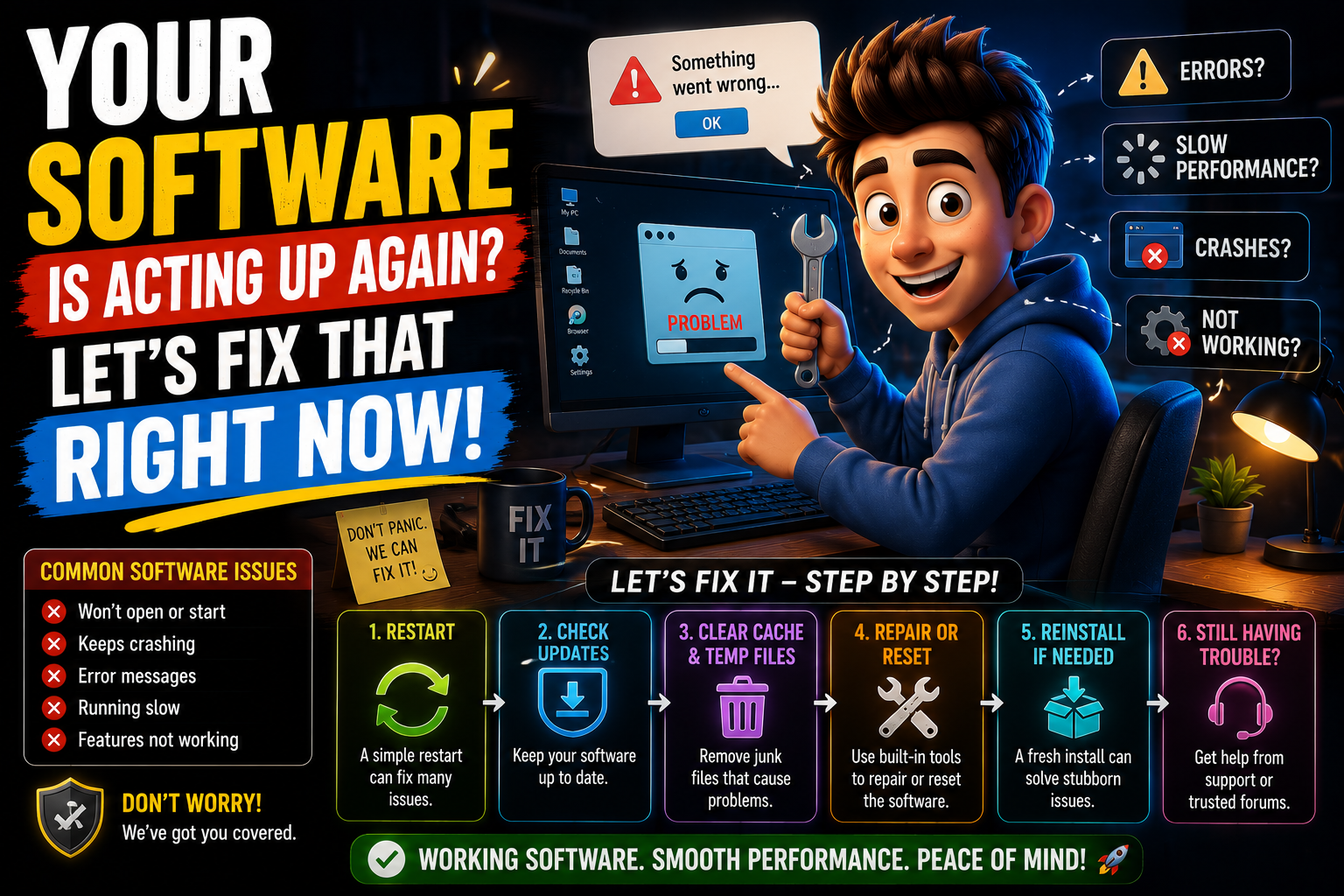
Step-by-Step: Real Fixes, In the Right Order
➤ The order here matters. Start from the top and work your way down. Don't skip to the complicated stuff when a simple fix might be all you need.
Do a full restart — not just close and reopenA lot of people reopen the crashed app without restarting Windows or macOS. That often doesn't clear the underlying problem. Restart the whole machine, let it fully boot, then try the app again. You'd be surprised how often this is genuinely enough. <:)>
Check if there's an update for the appOpen the software, go to Help or Settings, and look for a 'Check for Updates' option. If one exists, run it. Developers patch bugs constantly, and the version you're running might already have a known fix waiting for you.
Run it as Administrator (Windows users)Right-click the app icon and select 'Run as Administrator.' Some software needs elevated permissions that your regular user account doesn't give it. This is especially common with productivity tools, games, and older programs.
Clear the app's cacheApps store temporary files to load faster. When those files get corrupted, the opposite happens — the app breaks. For browsers like Chrome or Edge: go to Settings → Privacy → Clear Browsing Data. For other apps, check the settings for a 'Clear Cache' or 'Reset App Data' option.
Uninstall fully, then reinstall from the official sourceOn Windows: Settings → Apps → find the software → Uninstall. Restart your PC before reinstalling. Always grab the installer directly from the developer's official website — not a third-party download site. Fresh installs fix what partial updates miss.
Update your graphics and system driversThis one is especially important if creative apps, games, or video software are crashing. On Windows, go to Device Manager → Display Adapters → right-click → Update Driver. NVIDIA, AMD, and Intel all have their own update tools too — GeForce Experience, AMD Adrenalin, and Intel DSA respectively.
Check for OS updatesAn outdated Windows or macOS can have unpatched bugs that affect how apps run. Windows: Settings → Windows Update. Mac: System Settings → General → Software Update. Let it finish, restart, and test again.
Mistakes That Make Software Problems Worse
➤ When software breaks, panic sets in and people start clicking things they shouldn't. Here's what to avoid:
Troubleshooting Tips for Specific Situations
➤ App opens and closes instantly
This usually means a missing dependency or a permissions issue. On Windows, open Event Viewer (search it in the Start menu), navigate to Windows Logs → Application, and look for the error that matches the time the app crashed. The log will often name the exact file or component that's failing.
➤ App works fine for a while, then freezes
Press Ctrl + Shift + Esc to open Task Manager while it's running. Watch the RAM and CPU columns. If either hits 100% around the time it freezes, you've found the problem. Close background apps — especially browsers with many open tabs — and try again. <:)>
➤ App works on another user account but not yours
Your personal app settings or profile data is likely corrupted, not the software itself. Try creating a new Windows or Mac user account, installing the app fresh there, and seeing if it runs correctly. If it does, the problem is isolated to your profile's local data for that app.
➤ App broke after a Windows or macOS update
This is unfortunately common. Check the software developer's website or social media accounts — there's usually a notice if a recent OS update caused compatibility issues, along with an estimated fix timeline. You can also try the app's compatibility mode on Windows by right-clicking the icon → Properties → Compatibility tab.
Quick tip: Before you contact tech support for any software, write down three things — the exact error message, what you were doing when it happened, and what you've already tried. This single habit cuts troubleshooting time in half, every single time.
What the Experts Actually Do Differently
➤ People who fix software problems for a living don't have secret tools. They just have a calm, methodical approach. They don't panic. They read the error. They try one thing, observe the result, then try the next. That mindset is really the only real edge anyone has. <:)>
➤ A few habits worth building right now:
People Also Ask — FAQ
➤ Intermittent crashes are often caused by memory issues, overheating, or a background process that isn't always running. Run Windows Memory Diagnostic (search in Start menu) and use a free tool like HWMonitor to check your CPU and GPU temperatures during use.
➤ Absolutely. Malware hogs system resources, corrupts files, and can interfere directly with running applications. If several unrelated apps start crashing around the same time, run a full antivirus scan before anything else. Malwarebytes has a free version that works well for this.
➤ Short-term, yes. But older versions often have unpatched security holes. If you roll back, avoid using that app for anything sensitive — especially banking, cloud storage, or email — until a stable update is available.
➤ Your system configurations are different. Different driver versions, OS builds, background apps, RAM amounts — all of it affects how software behaves. The same app can run perfectly on one machine and crash constantly on another with nearly identical specs. Start with driver updates and background process cleanup.
➤ Check the app's official forums, Reddit community, or social media pages. If dozens of people are reporting the same problem after the same update, it's on the developer. If the complaints are isolated or your system-specific, it's worth troubleshooting your own setup first.
Final Thoughts
➤ Software problems feel bigger than they are in the moment. You're sitting there, deadline looming or evening plans ruined, staring at an error message that means nothing to you. But step back. Breathe. Almost every single software issue has been seen before by someone else — and fixed. The internet is full of people who solved the exact problem you're dealing with right now.
➤ Start simple. Restart. Update. Reinstall. Check your drivers. Read the error. If you go in that order, you'll solve the problem 80% of the time without needing anyone's help. And when you do solve it, write down what worked — future you will thank you. <:)>
➤ You don't need to be a tech expert to fix your own software. You just need to be patient, methodical, and willing to try one thing at a time. That's really it.